What AirPods Do I Have? A Guide on Identifying Your AirPods Model
Wondering which AirPods you have? Here’s everything you need to know about all the different AirPods models and how you can tell one from the other.
Identifying which AirPods model you own may seem trivial, but it’s essential – especially if you bought them from third-party sellers. You need to know what you’re getting to determine what features you can expect and what services you can avail of under Apple Support, should you ever need to.
Plus, imagine having your AirPods mixed with others, how will you know which pair is yours?
Worry not! We’ve put together the most efficient ways to spot the difference between all the AirPods variants. Let’s find out how.
In This Article
How to Identify AirPods: Physical Differences Between Each Variant
Apple AirPods come in 3 different types: AirPods, AirPods Pro, and AirPods Max.
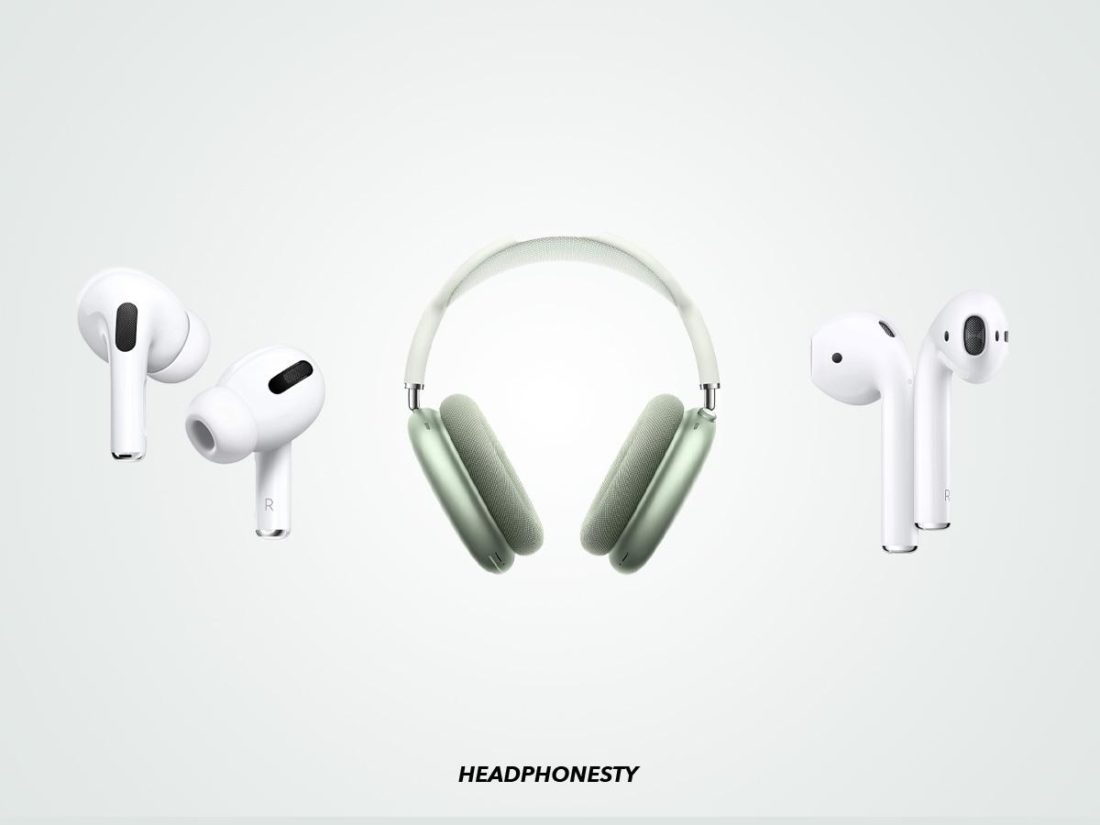
Among the three, AirPods are the simplest in form, as they don’t have any removable parts. You won’t be dealing with ear tips (AirPods Pro) or ear cushions (AirPods Max).
To dive deeper into the form factor of each variant — AirPods are earbuds, AirPods Pro are IEMs, and AirPods Max are over-ear headphones.
Here’s what that means:
AirPods, as earbuds, are designed to rest on your open ear structure rather than dig into your ear canal.
AirPods Pro, on the other hand, are structured to go right into your ear canal as they’re in-ear monitors (IEMs). They have a protruded upperside to seal off the ear and provide a more immersive user experience.
Then, there are the AirPods Max, designed to cover your whole ear, hence being “over-ear” headphones.
How to differentiate between AirPods 1, 2 & 3
It’s relatively easy to distinguish between the different AirPods types, but the standard AirPods models? Not so much.
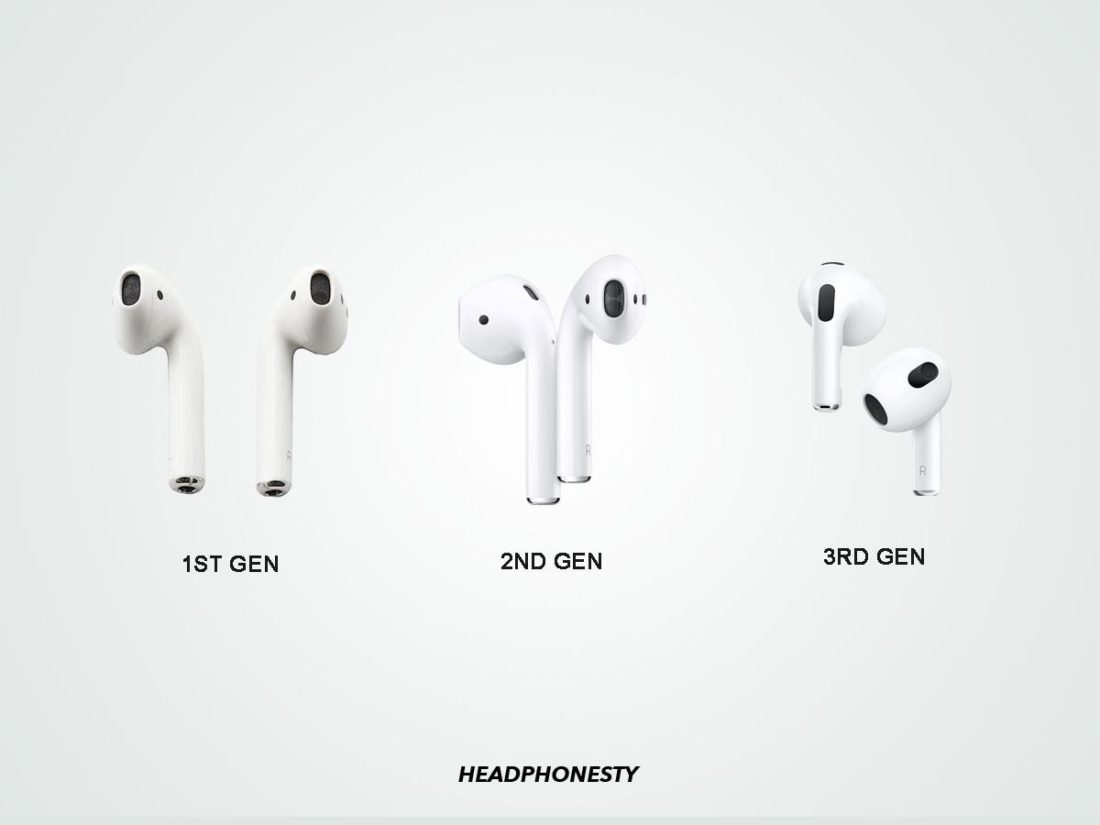
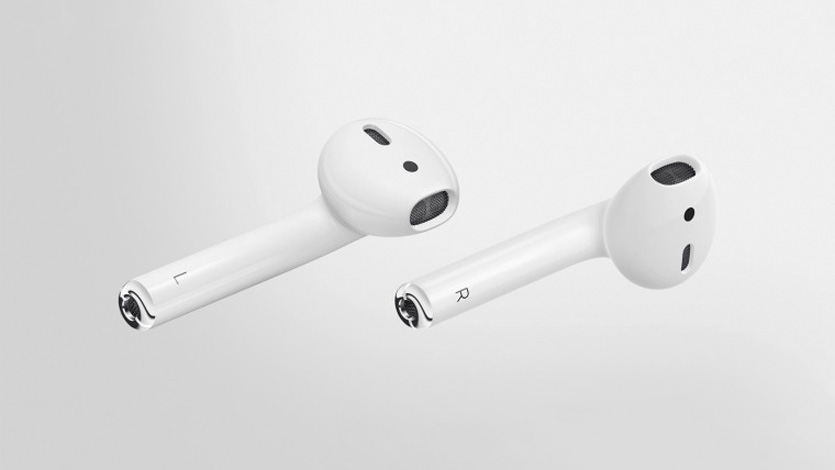
The 1st gen and 2nd gen AirPods are identical, both look like toothbrush heads.
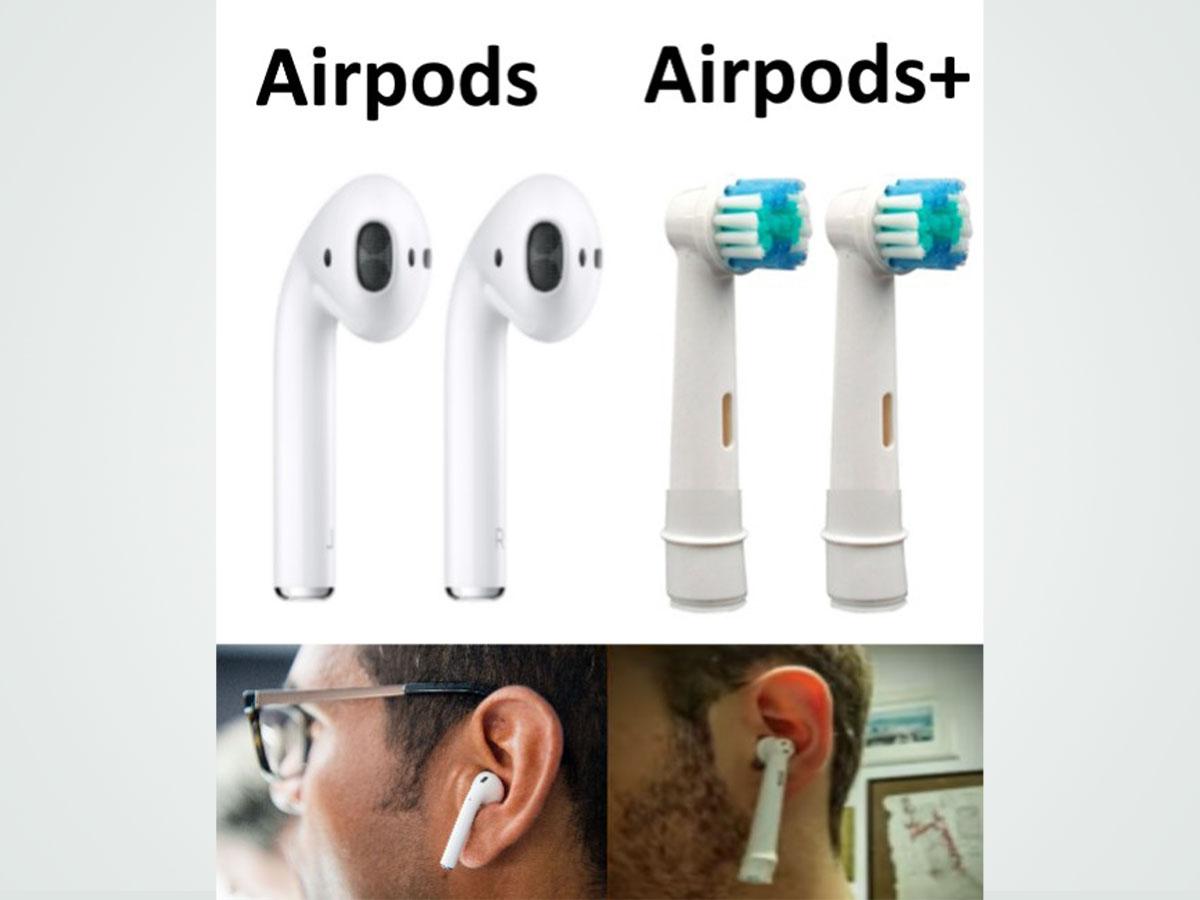
In fact, when the AirPods rolled out, their new design didn’t exactly sit right with many users. The industry ridiculed the look, saying the AirPods looked like mini hairdryers, Snoopy, or brush heads (this one stuck with amused users the most).
Six years and thousands of memes later, the AirPods still look like brush heads. Yet, are arguably the industry standard for earbuds today.
1st and 2nd gen AirPods are the same size, weight, color, and style – even the speaker is in the same place. These two take after the original “Earpods,” which have a long stem with the speaker facing forward instead of directly in the ear canal.
The 3rd gen AirPods, however, are a different story.
For starters, 3rd gen AirPods have shorter stems than the 1st and 2nd gen AirPods. They’re also more rounded and packed with enhanced force sensor controls on the stem. Additionally, they feature a skin-detect sensor rather than the optical sensor on 1st and 2nd gen AirPods.
Regarding size, the 1st gen and 2nd gen AirPods beat the 3rd gen as they weigh 4 grams each (0.14 ounces) instead of the 3rd gen AirPods’ 4.28 grams (0.15 ounces). On the flip side, the 3rd gen AirPods have more depth (19.21mm/0.76inch) than the 1st and 2nd gen AirPods (18.0mm/0.71inch).
How to Tell Which AirPods You Have Using the Model Number
The model numbers on AirPods are essentially ID numbers. Apple uses these model numbers to differentiate its products and make service easier.
Since Apple has allocated each AirPods variant a unique model number, you can leverage that difference to find which generation of AirPods you have.
That said, here’s a table listing all the AirPods variants and their model numbers:
| Variant | Model Number |
|---|---|
| AirPods 1st Generation | A1523 (Right AirPod), A1722 (Left AirPod) |
| AirPods 2nd Generation | A2032 (Right AirPod), A2031(Left AirPod) |
| AirPods 3rd Generation | A2565 (Right AirPod), A2564 (Left AirPod) |
| AirPods Pro | A2084 (Right AirPod), A2083 (Left AirPod) |
| AirPods Max | A2096 |
How to locate the AirPods’ model number
There are two ways to go about this: you either go through the iOS settings or find them on your AirPods.
Via the iOS settings
- Go to the iOS Settings app and select Bluetooth.
If you have an earlier version, you’ll find your AirPods model in Settings > General >About.
Via AirPods
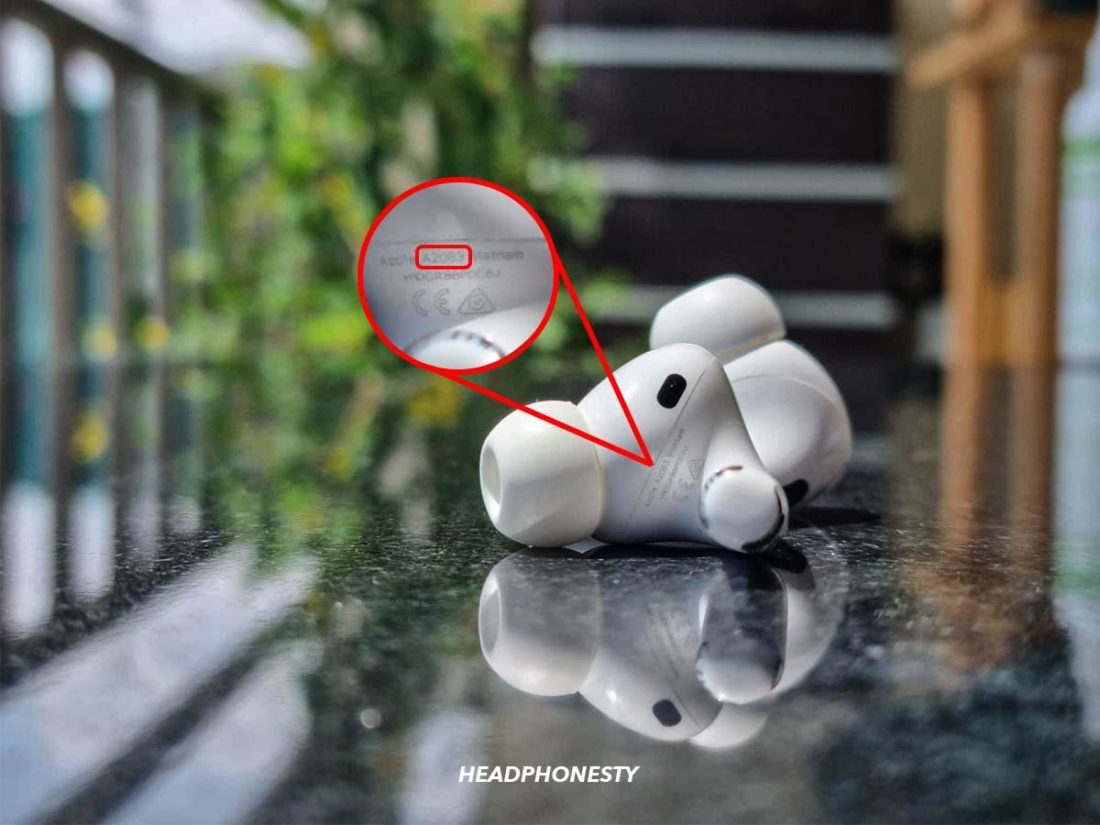
This is an alternative way to find your model number if you can’t find it through your iOS or iPadOS settings. It’s the first line of text underneath your AirPod head. For AirPods Max, you’ll find the model number on the underside of the left ear cushion.
How to Use the Serial Number to Tell Your AirPods’ Generation
The serial number is a unique number Apple assigns to each individual product to differentiate it from other Apple products. The serial numbers on Apple devices help them find replacements or parts for these products.
It also helps in warranty and version management. But, most importantly, it’s the most efficient way to know if your AirPods are fake.
How to locate the AirPods’ serial number
There are several ways to find your AirPods’ serial number. Here’s a quick rundown on all of them:
Via iOS settings
- Enter the settings app and select Bluetooth.
Via your AirPods
You can also find the serial number printed on the underside of your AirPods, below the speaker heads.
Via your AirPods box
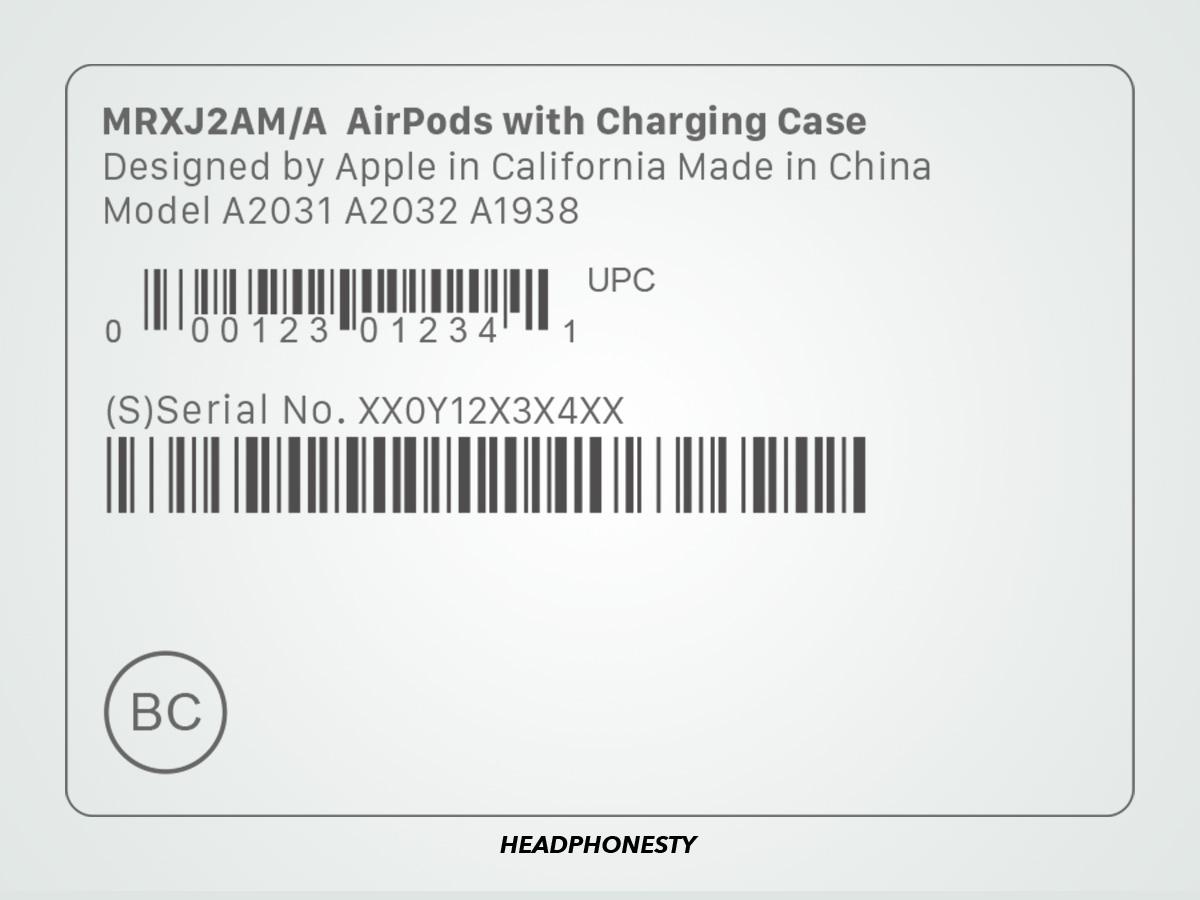
You can also find the serial number on your AirPods’ packaging – next to your barcode.
Via your charging case
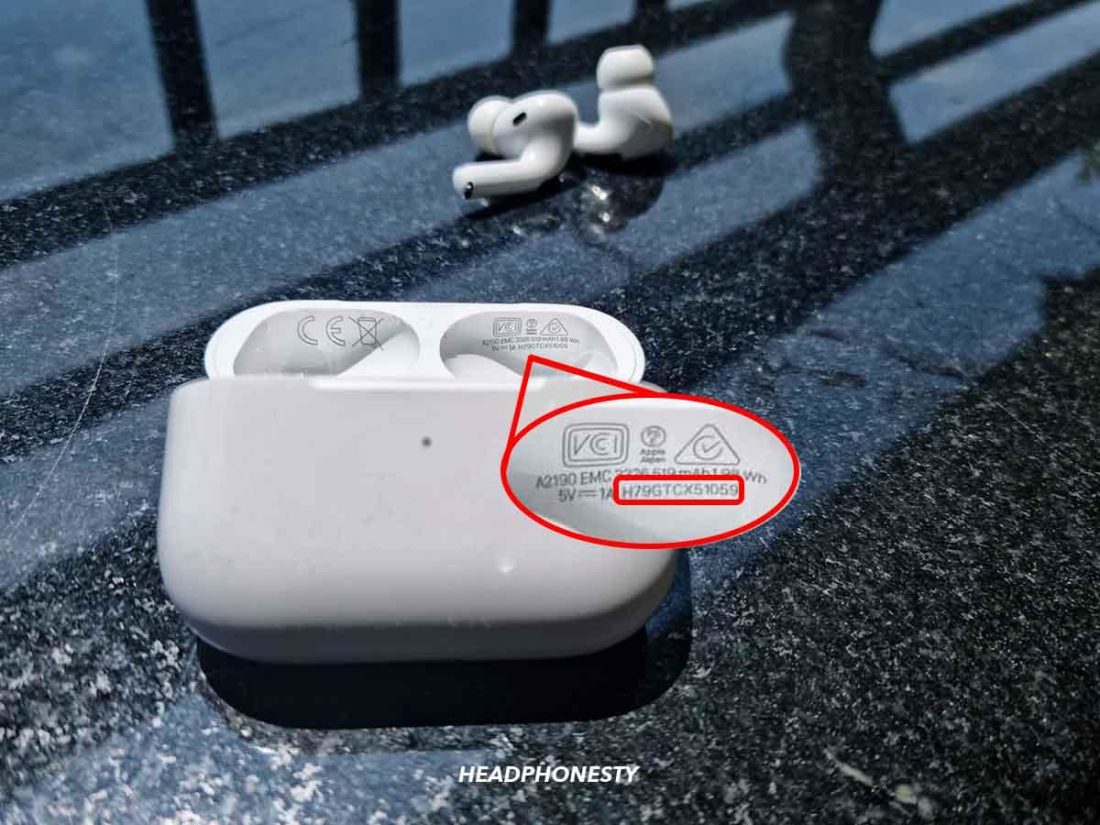
You can find the serial number printed under the lid of your AirPods’ charging case. This goes for both the wireless and MagSafe charging cases.
MagSafe or Wired: How to Identify Your AirPod Charging Case
There are different types of AirPods charging cases. There’s the Lightning Charging Case, Wireless Charging Case, AirPods Pro Charging Case, MagSafe Charging Case for AirPods, and MagSafe Charging Case for AirPods Pro.
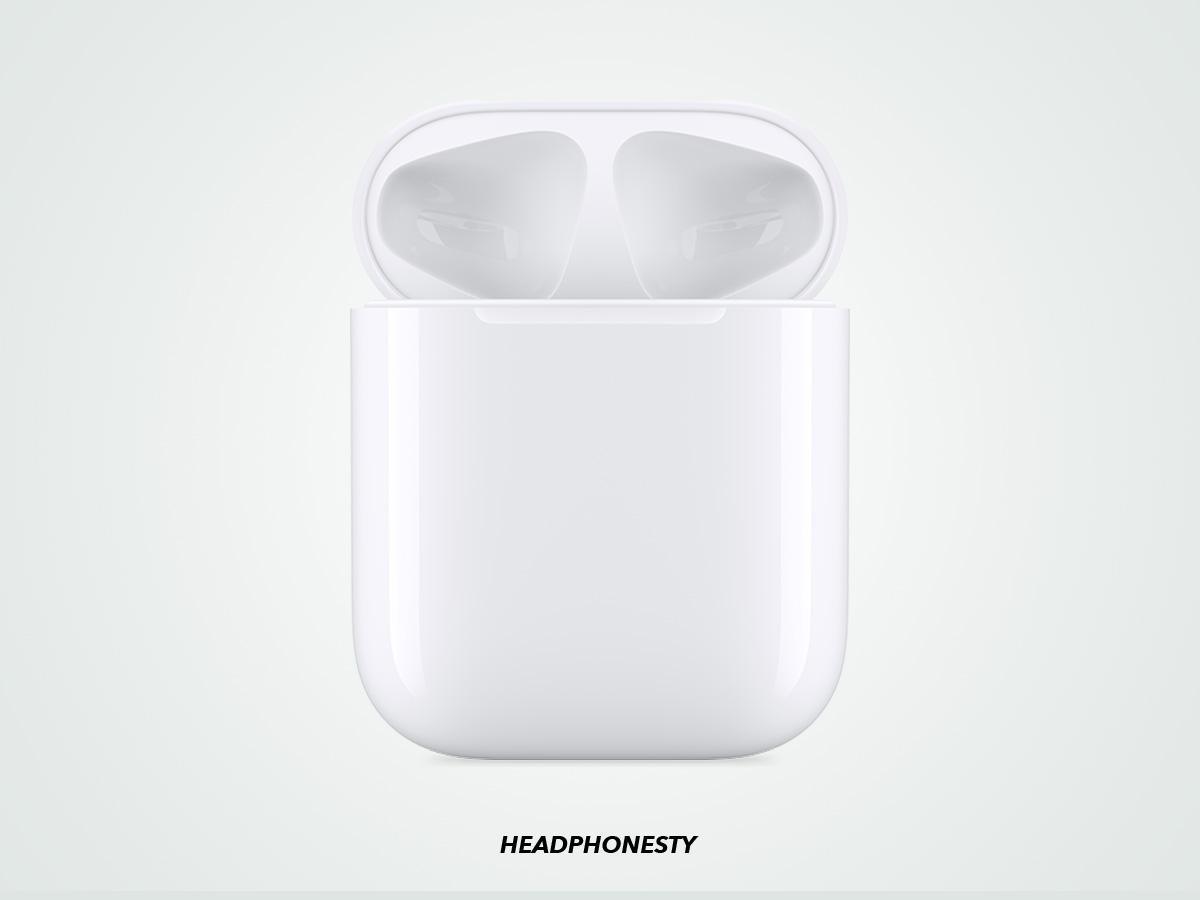
The Lightning charging case is the first among the lot to be released by Apple. It was introduced in 2017 alongside the 1st gen AirPods and is only compatible with the 1st and 2nd gen AirPods. It has an interesting build: a lightning connector for wire charging at the bottom and a status light inside the case.
Then comes the wireless family, starting with the wireless charging case.
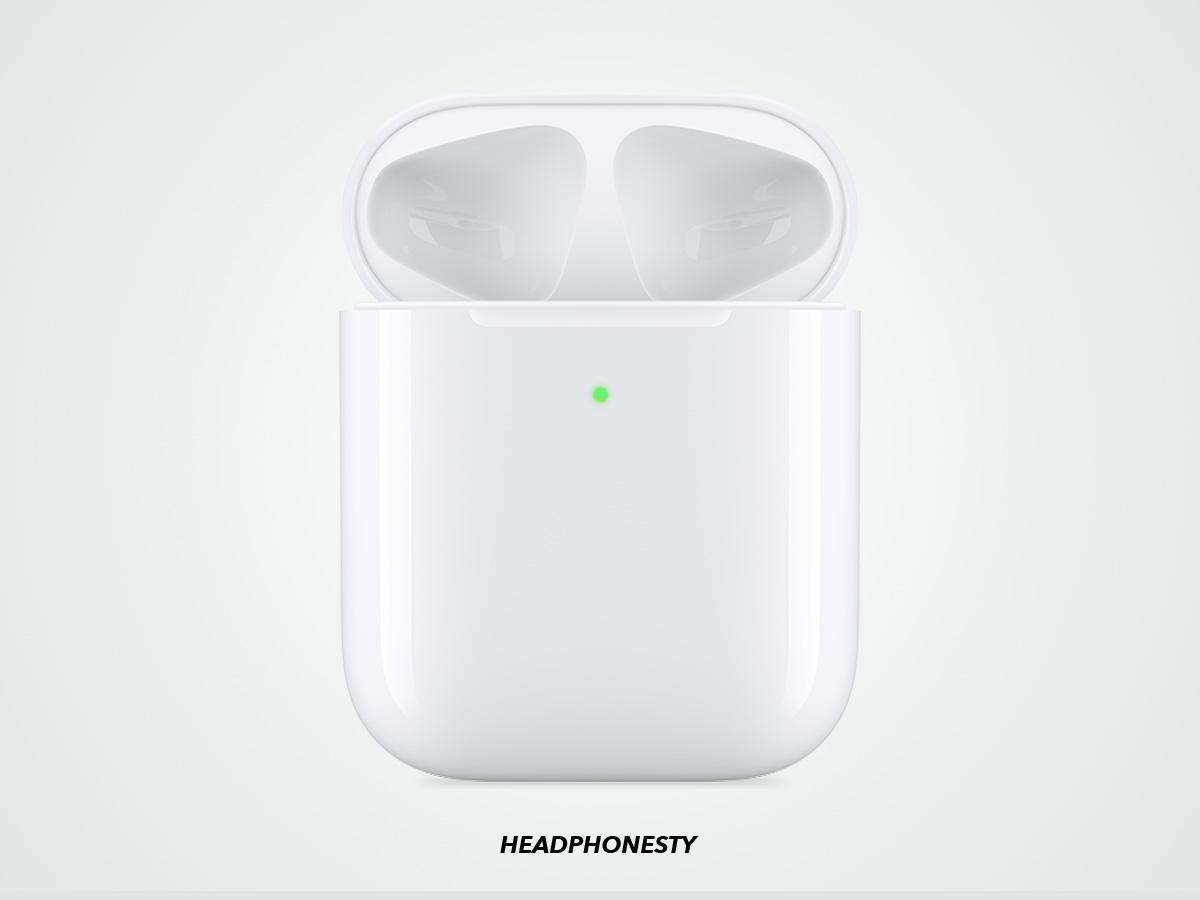
Released in 2019, the wireless charging case, like the Lightning charging case, is compatible with only 1st and 2nd gen AirPods. With the exception that the case is Qi compatible.
The AirPods Pro charging case was also released in the same year as the wireless charging case. It sports the same build as the wireless charging case.
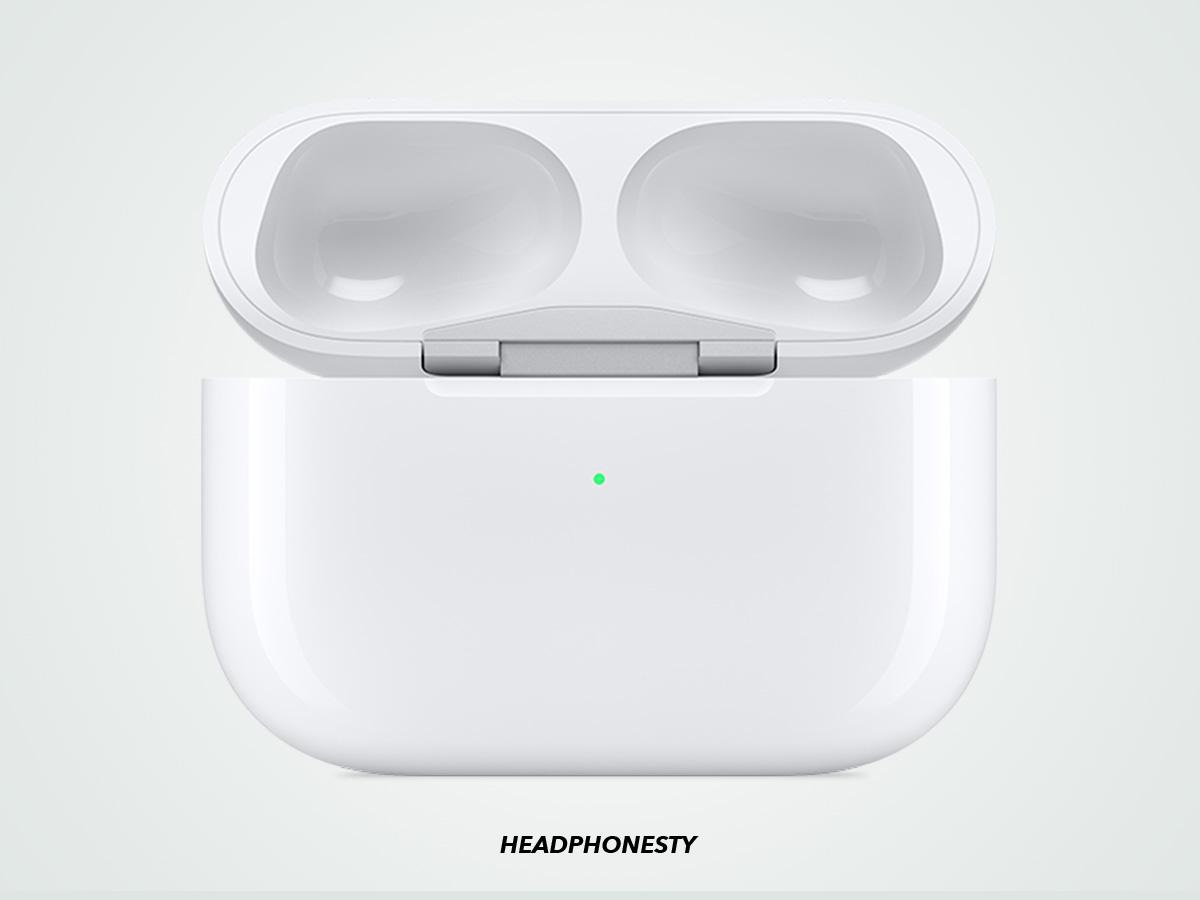
Next in line are the MagSafe cases. These are compatible with Qi-certified wireless chargers and align magnetically with MagSafe-compatible chargers. You can tell a case is MagSafe Pro if the ending four digits of its serial number are 1059 or 1NRC.
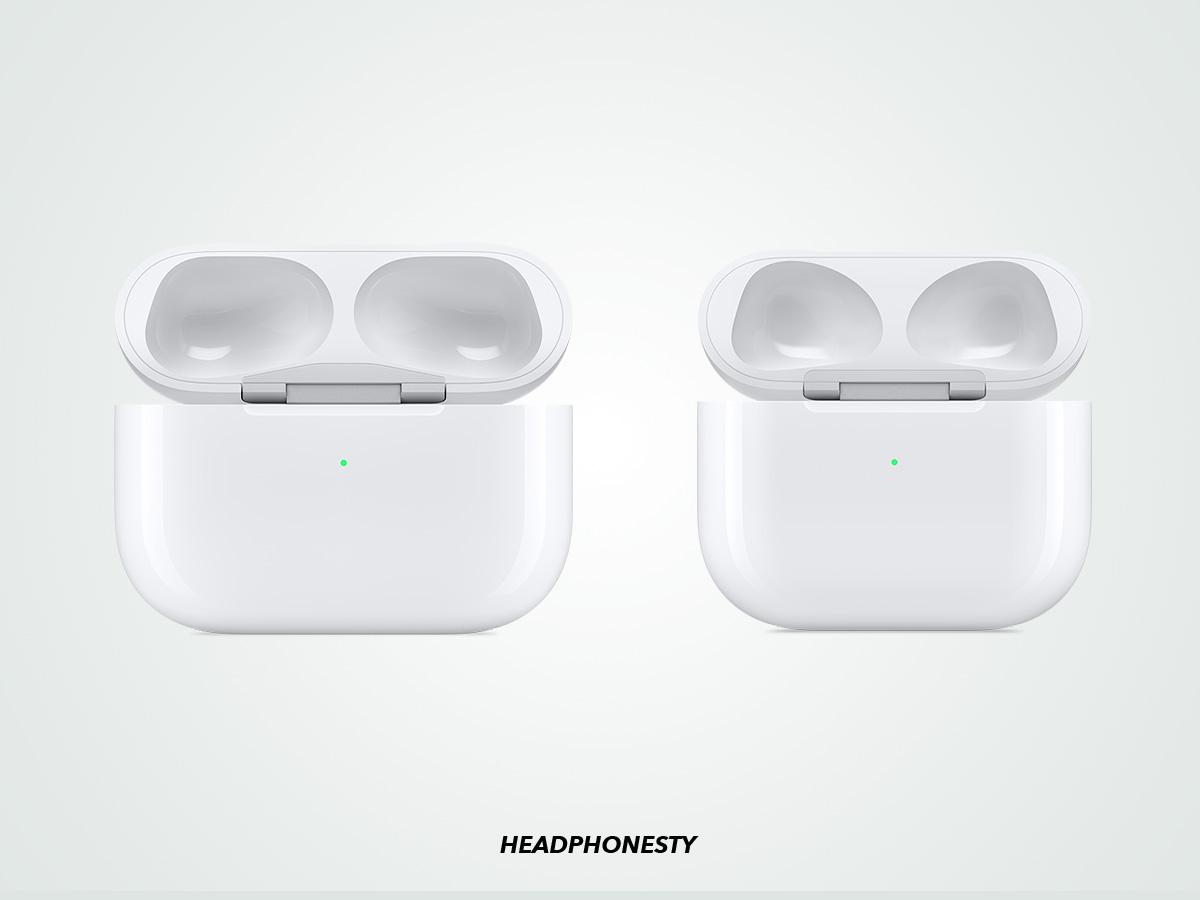
All wireless charging cases have their status light on the front of the case.
It can be difficult to identify your charging case type. Luckily, the status light location and details like the model number can help.
How to locate the AirPods’ charging case model
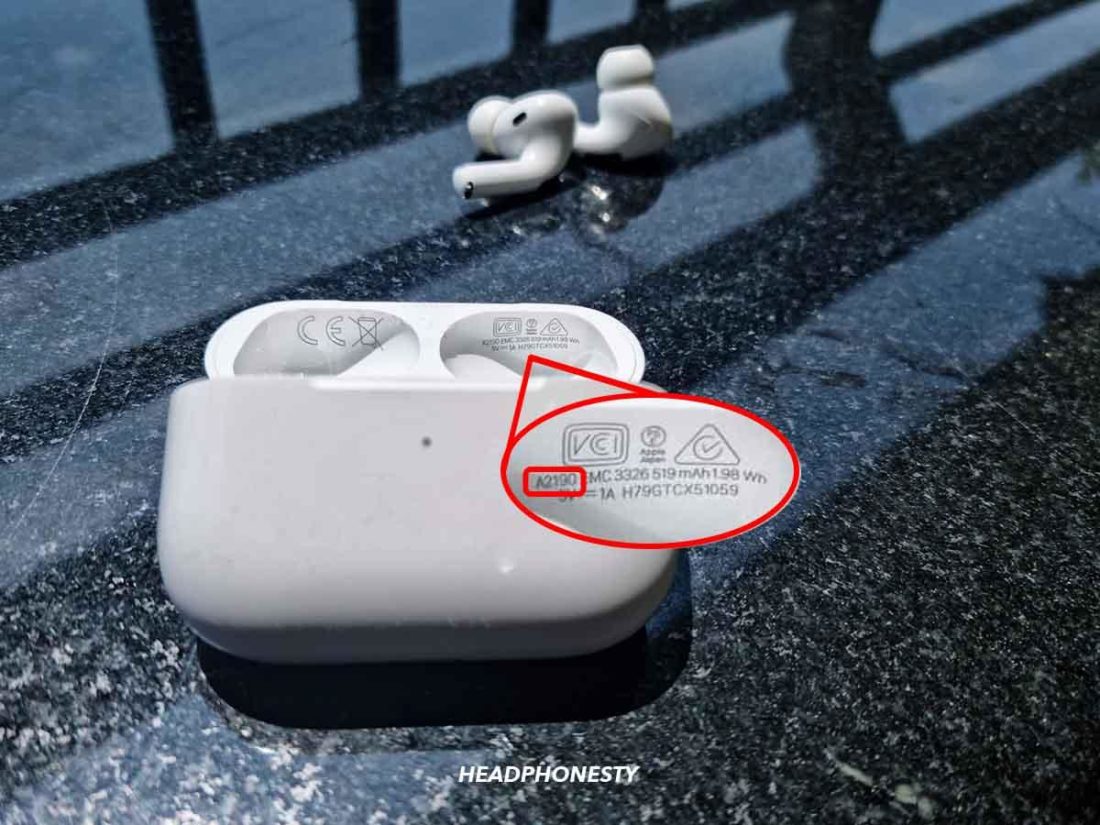
To check your model number, flip your charging case open. You’ll find the case’s model number written on the underside of the lid. Next, compare that model number to our table below to find the type of AirPods you own.
| Variant | Generation | Model Number | Ending of Serial Number |
|---|---|---|---|
| Lightning charging case | 1st and 2nd gen | A1602 | — |
| Wireless charging case | 1st and 2nd gen | A1938 | — |
| AirPods Pro charging case | AirPods Pro | A2190 | 0C6L or LKKT |
| AirPods MagSafe charging case | AirPods 3rd gen | A2566 | — |
| AirPods Pro MagSafe charging case | AirPods Pro | A2190 | 1059 or 1NRC |
Conclusion
Even though all AirPods look the same, there are ways to identify yours. This is important if you need to replace your AirPods, fix them, or if you got them from a shady reseller.
The most surefire methods to know what kind of AirPods you have is by looking for the serial number or model number and matching it with our information above. You can also check out the Apple website to verify it.
Soon, you’ll be identifying AirPods models without having to check back here. In the meantime, we’d love to know if our guide has helped you find your specific AirPods model. What model is it? Do let us know in the comments below!
How To Check Model Of AirPods And Differentiate Between Generations

Now that we have more than one models for Apple AirPods, it is important to know how to check which model of the truly wireless headphones model you have.
Knowing how to check model of AirPods can be very handy especially because the new model looks exactly like the old one. So if you’re wondering which AirPods model I have, then this post is going to be very helpful for you.
Even the packaging of 1st and 2nd generation models looks the same, with exception of the wireless charging model that has an LED light on the front.
Not knowing how to tell the new and old models apart can even be problematic, specifically for those who are buying the second generation model from a third-party seller.
We get many people emailing us how to tell which model of AirPods they have and how to check model of AirPods, and differentiate between first and second generation.
One easy way of finding out what generation AirPods are is by checking the model number. Each model of AirPods that includes 1st and 2nd generation of the product carry unique Model number that allow users to tell which generation the headphones belong to.
Even the model numbers on the AirPods wireless charging case and non-wireless charging case are different.
Here we will also tell you about the model number of AirPods Pro, AirPods Max and AirPods 3.
Check AirPods Model And Differentiate Between Generations
In this guide you will learn how to tell which model of Apple AirPods you have. By the end of this guide you will know how to check which AirPods you have by looking at AirPods model number.
This guide will show you how to check AirPods model and differentiate between generations for AirPods, AirPods 2, AirPods Pro and AirPods Max.
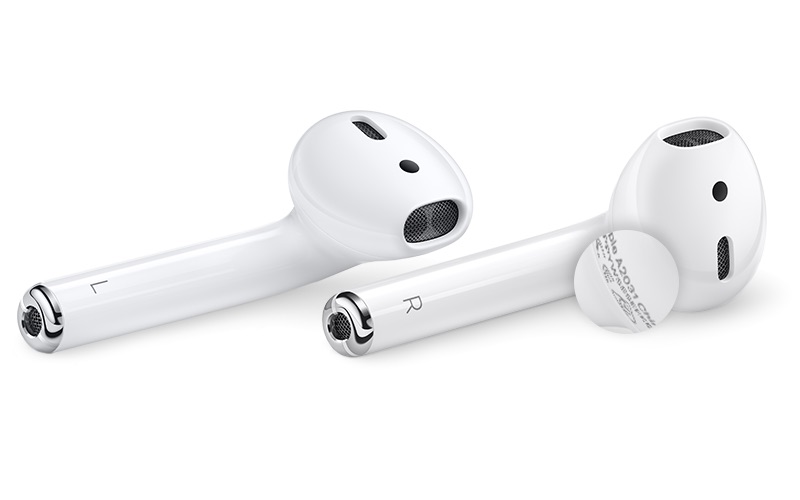
You can find the Model number on the AirPods packaging as well as on the underside of each AirPod as shown in the image above.
In this post we have shared model numbers for all AirPods models including AirPods 1st Generation, AirPods 2nd Generation and AirPods Pro.
There are various models of AirPods available in the market including A2032, A2031, A1602, A1523, A1722 and A1938, so finding which model you have is important.
Here are the model numbers for each model of AirPods:
AirPods:
- AirPods 3rd Generation: A2565, A2564
- AirPods 3rd Generation Charging Case: A2566
- AirPods 2nd Generation: A2032 and A2031
- AirPods Wireless Charging Case: A1938
- AirPods 1st Generation: A1523 and A1722
- AirPods Charging Case (Non Wireless): A1602
AirPods Pro
- AirPods Pro: A2084 and A2083
- AirPods Pro MagSafe Charging Case: A2190
AirPods Max
- AirPods Max: A2026
How To Tell If AirPods Case Is Wireless Charging Compatible
For charging case, you can find the model number written at the bottom of the case.
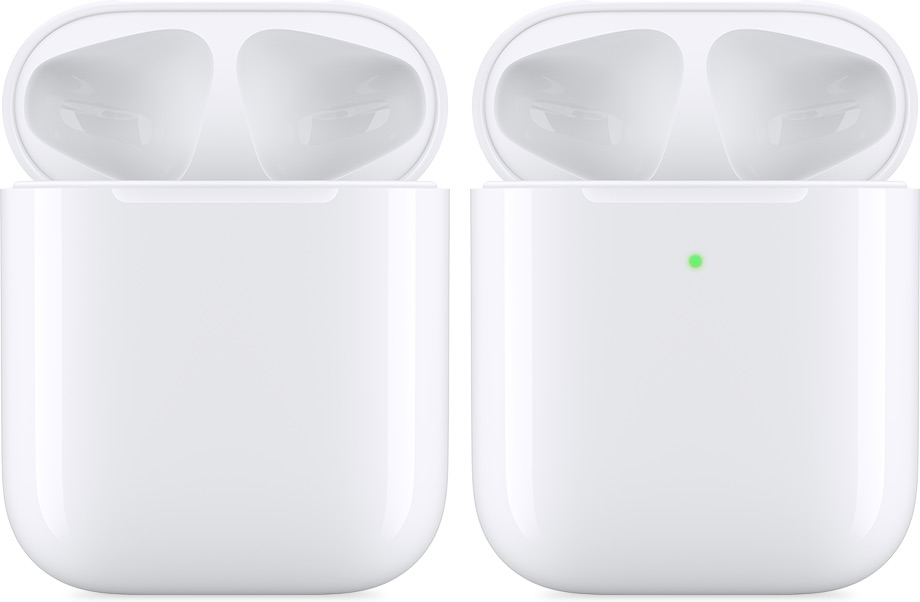
Also, the easiest way to identify whether you have the wireless charging case or not is by looking for the LED status light on the front. The non-wireless charging case does not have this light.
How to check AirPods Serial Number
You can follow the instructions below to check AirPods Serial Number.
Step 1. Connect your AirPods to your iPhone and open Settings.
Step 2. Go to General and then go to About.
Step 3. Scroll down and tap on your AirPods name.
Step 4. On the next page you will find the Serial number of your AirPods, Firmware version as well as model number.
You can also find your AirPods Serial Number by looking at its original package and on its charging case. On the charging case the serial number is written on the inside portion of the lid.
There you go folks, this is how you can identify AirPods model and differentiate between the first and second generation models.
If you have any questions, feel free to use the comments section below.
Did you just buy your first ever pair of AirPods? Then we have some helpful guides that will help you in taking full advantage of your new headphones. Read our articles on AirPods below.
Как отличить AirPods 2 от первых AirPods: коробка, кейс, номер модели
 В закладки
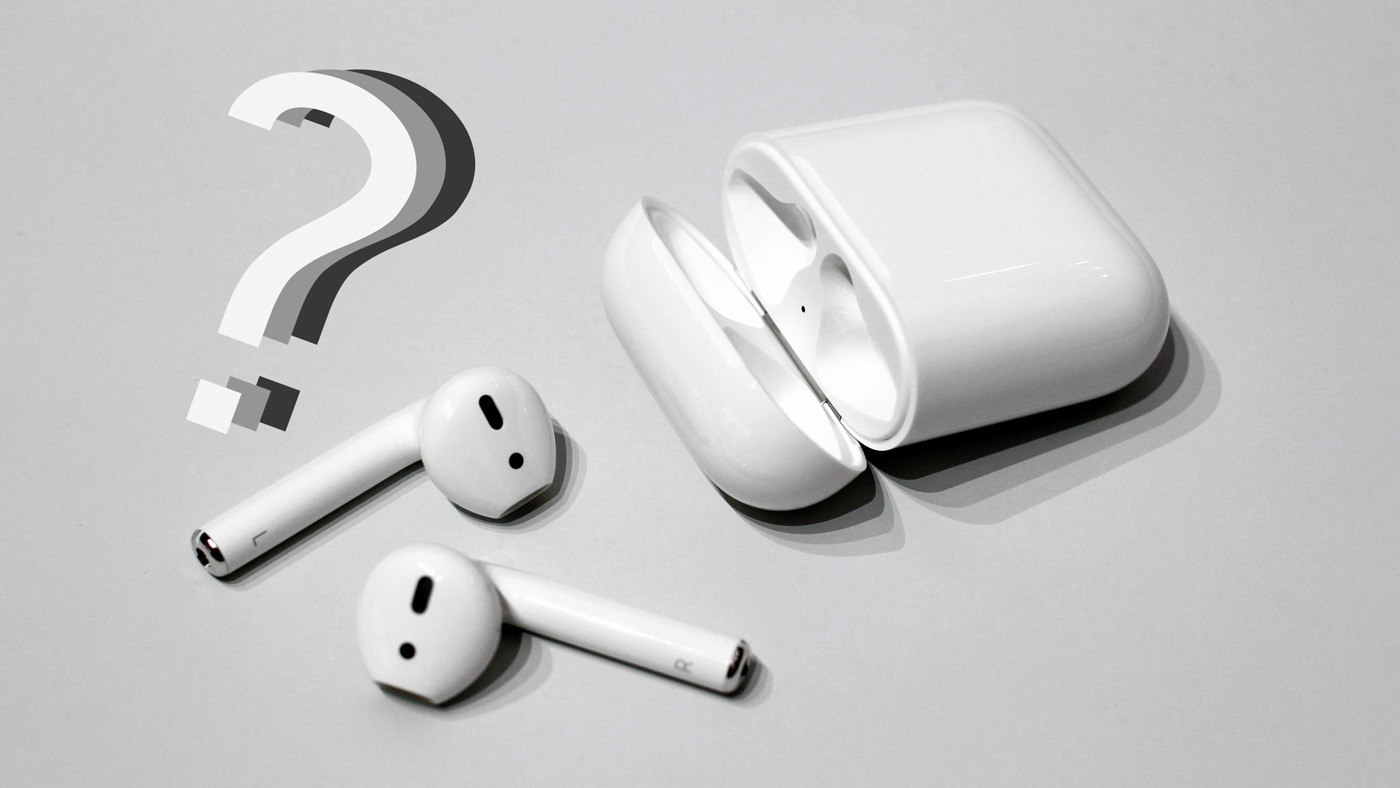
Кажется, что вторые AirPods внешне не отличаются от первых, поэтому при покупке у неавторизованных продавцов вас могут легко обмануть.
Покупайте AirPods 2 в проверенном магазине. Цена – 16 990 руб. (предзаказ)
AirPods 2 в обычном кейсе, без функции беспроводной зарядки – 13 990 руб.
Отдельный кейс для AirPods или AirPods 2 с беспроводной зарядкой – 6 990 руб.
И всё же отличия между первым и вторым поколениями AirPods есть. Вот как их можно различить:
1. Номер на наушниках
У каждого наушника в паре AirPods свой номер модели. Их легко можно отличить по нему:
- Первые AirPods: правый A1523, левый A1722
- Вторые AirPods: правый A2031, левый A2032
Вот где его можно найти:
Номер модели есть на самих наушниках
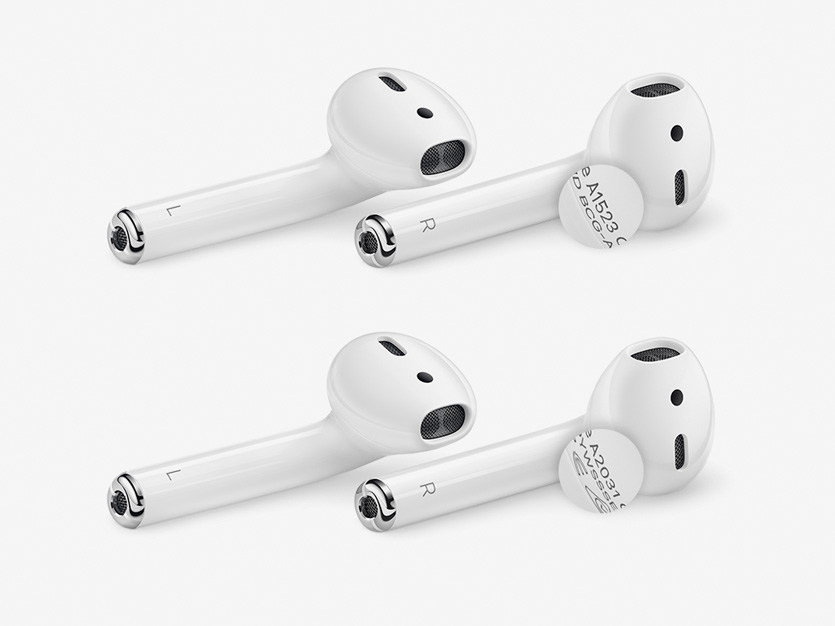
Номера моделей указаны на каждом наушнике
Номера моделей есть на нижней стороне наушников. Цифры очень маленькие, и лично я не вижу их даже в очках.
Чтобы различить их, рекомендую использовать увеличительное стекло или программную лупу, которая есть в iPhone. Ее можно добавить в «Пункт управления» через его раздел в «Настройках».
Плохо, что номер модели указан именно на той части наушников, которая постоянно контактирует с ухом. За несколько месяцев использования на моих он хорошо затерся и различим с трудом.
Его можно найти в «Настройках» iPhone
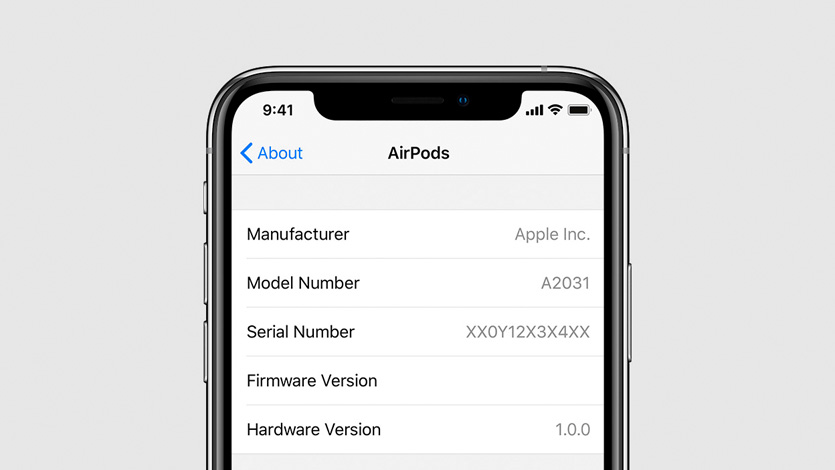
Здесь указан номер только правого наушника
Когда наушники подключены к iPhone, их номер модели можно найти в меню «Настройки» > «Основные» > «Об этом устройстве» > AirPods — здесь же есть их серийный номер и версия прошивки.
В этом меню показан номер модели только правого наушника: A1523 для первых и A2031 для вторых AirPods.
Дело в том, что именно правый считается основным, а левый выступает как дополнительный. Поэтому номер не поменяется, даже если вы спрячете правый в зарядный кейс.
Тем не менее, два разных наушника не получится подключить к одному iPhone одновременно. Поэтому выводы в этом случае можно делать только по номеру правого.
Номер указан на коробке наушников
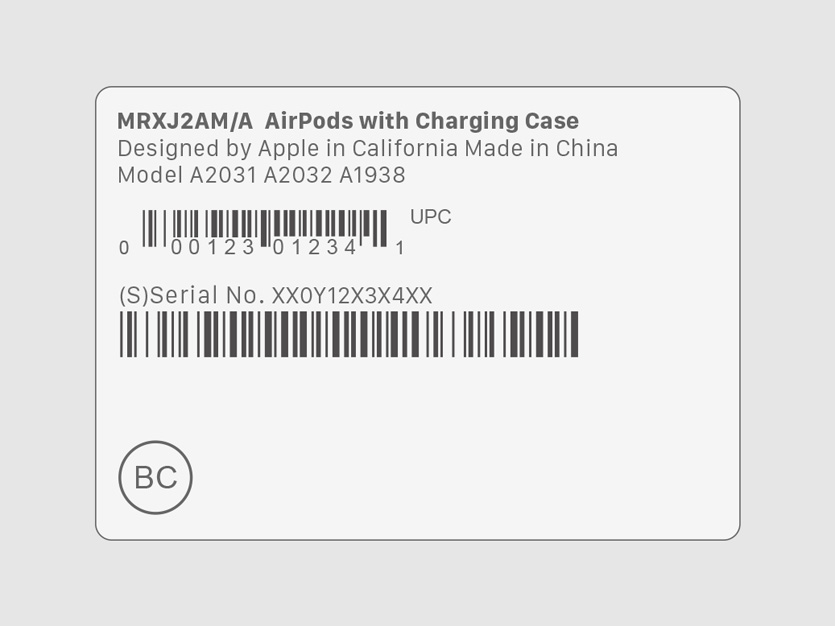
На коробке должна быть такая наклейка
Если перед вами новые запакованные наушники, обратите внимание на наклейку с характеристиками на одной из граней. Возле штрихкода должны быть указаны модели левого и правого наушников.
Если покупаете наушники в Apple Store, у официального представителя или в другом проверенном месте, этой информации можно доверять. Если нет, постарайтесь распечатать их и проверить, что внутри.
Возле номеров наушников на этой наклейке также указана модель зарядного кейса: вторые AirPods могут быть как с обычным чехлом, так и с тем, который поддерживает беспроводную зарядку.
2. Зарядный кейс
Вы можете использовать и новый, и старый зарядный кейс с любой моделью наушников. Они отличаются по номерам:
- Кейс с обычной зарядкой: A1602
- Кейс с беспроводной зарядкой: A1938
Код A1602 используется и на кейсах с обычной зарядкой, которые поставлялись с первыми AirPods два года назад, и со вторым поколением.
Номер модели под крышкой кейса
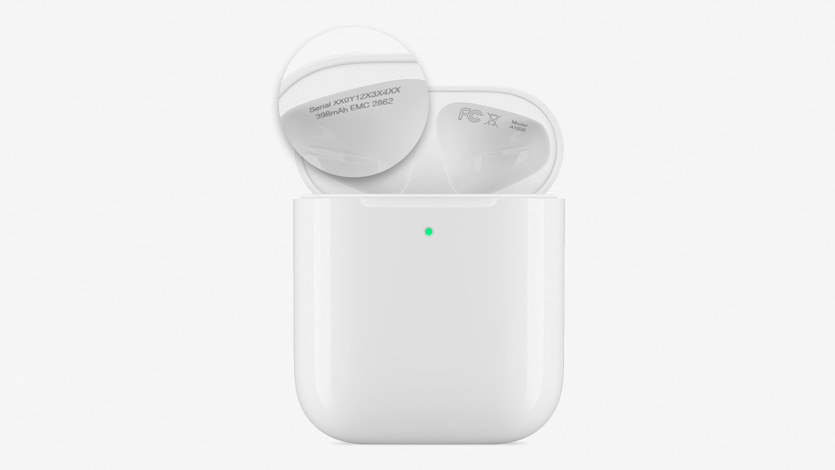
Номер модели может быть или слева, или справа
Номер модели зарядного кейса указан мелким шрифтом на внутренней стороне верхней крышки — или справа, или слева.
Здесь также есть информация про объем аккумулятора, который встроен в чехол, и серийный номер зарядного кейса.
Шрифт здесь очень мелкий, поэтому лучше всего использовать обычную лупу или увеличительное стекло из «Пункта управления» iPhone.
Расположение светового индикатора
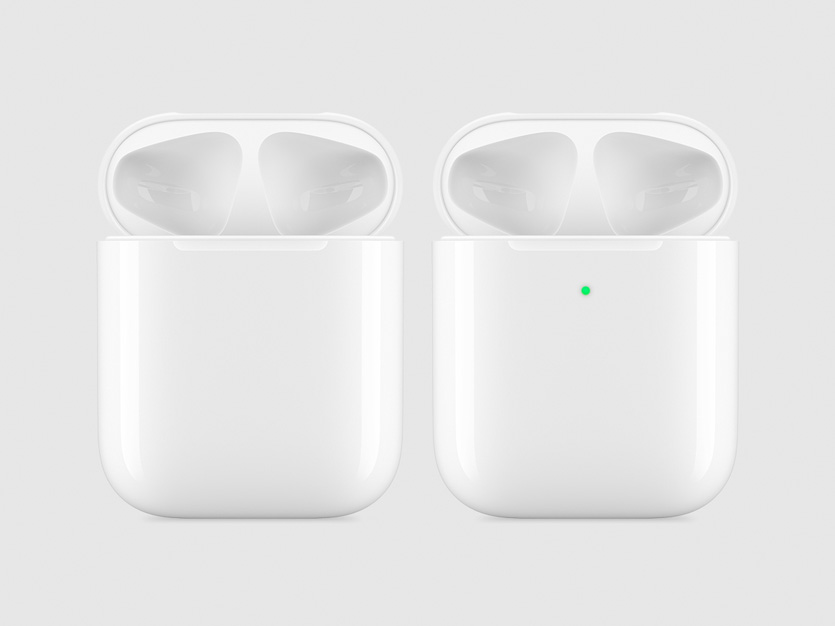
Слева обычный кейс, справа чехол с беспроводной зарядкой
Узнать зарядный чехол AirPods проще всего по световому индикатору. У обычного он расположен между слотами для наушников под крышкой, у чехла с беспроводной зарядкой — на верхней стороне снаружи.
Световой индикатор переехал, чтобы вы могли быстро увидеть, заряжается ли чехол на Qi-станции или уже зарядился. В первом случае он будет гореть оранжевым, во втором — зеленым.
3. Разные AirPods не работают вместе
Вместе можно использовать наушники или первой серии, или второй
Если вы установите в зарядный кейс наушники разных серий (A1523 и A2032 или A1722 и A2031), они не будут работать вместе. Тогда на экране iPhone появится предостережение, что вы используете разные модели AirPods.
Дело в том, что первые и вторые AirPods работают на базе отличающихся чипов: W1 и H1. Второй повышает стабильность подключения, увеличивает дистанцию соединения и время автономной работы, а также делает звучание более качественным.
Вы можете использовать или два наушника первой серии или два наушника второй серии. При этом для любых наушников подойдет любой зарядный кейс.
Еще раз, как узнать модель AirPods
Наушники не подключены: тогда ищите номера моделей на нижней части AirPods. Первое поколение: правый A1523, левый A1722; второй поколение: правый A2031, левый A2032.
Наушники подключены: когда наушники подключены к iPhone, в его «Настройках» > «Основные» > «Об этом устройстве» появляется пункт AirPods. Здесь номер модели правого наушника: A1523 или A2031.
Разные наушники нельзя подключить одновременного, поэтому этого достаточно для определения модели.
Наушники запакованы: на коробке есть наклейка с указанием содержания. Тут указаны как номера наушников, так и модель зарядного кейса.
Кейс в ваших руках: ищите номер модели на внутренней стороне крышки зарядного кейса: A1602 — чехол с обычной зарядкой, A1938 — чехол с беспроводной зарядкой.
Кейс в чужих руках: даже издали можно увидеть расположение светового индикатора: у обычного чехла он внутри, а у нового с беспроводной зарядкой снаружи.
Теперь вас не обманут, если вы решите купить новые или старые AirPods. Вы также не промажете, когда будете докупать пару, если потеряли один из наушников.
В закладки
Which AirPods Do I Have? How to Tell AirPods Generation in 3 Easy Steps

Do you know which AirPod generation you have? Perhaps you intend to resell it to purchase an upgraded model or make extra money.
Whatever your reason, knowing the specific generation or model of your wireless earbuds is essential for easier trade-in. This only applies to the original AirPods, not fake AirPods, as trade-in stores do not accept them.
In this article:
How Much Are Your AirPods Worth?
1) Using your iPhone: How to Tell which AirPods You Have by Model Number
Are you wondering, “what model AirPods do I have?” or “which gen AirPods am I using now?” The simplest way to determine what generation of AirPods you own is to look for its model number.
Where do I find the model number?
You can find the model number on the Settings app of the phone you paired your AirPods with, the wireless charging case, or on the device itself. The model number is usually placed near the serial number.
The format of AirPods’ model number is an A followed by four numbers (e.g., A####).
How to determine the Airpods model number via Settings:
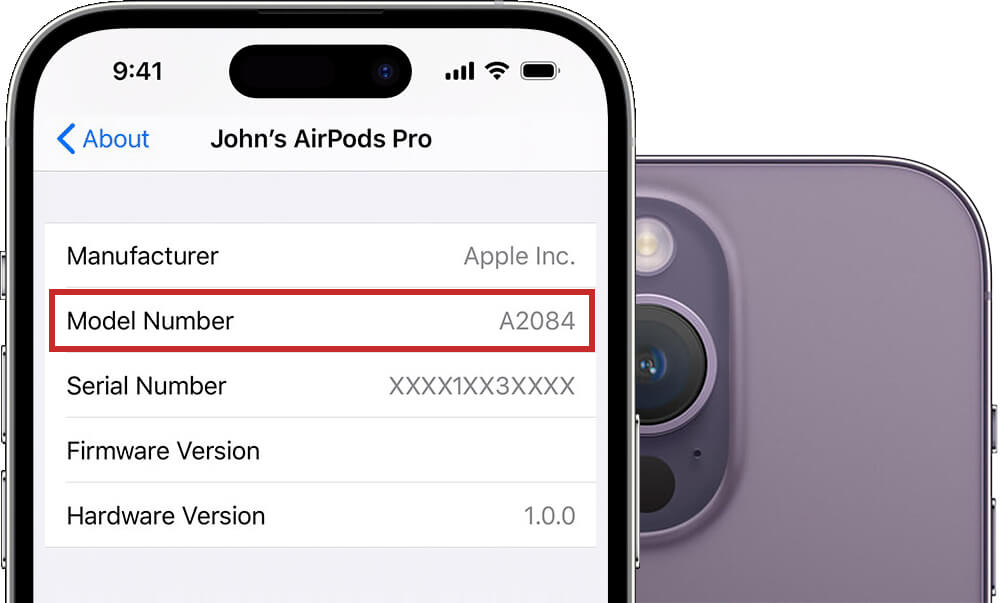
AirPods work when you connect them to a device via Bluetooth. For most devices, the controls for AirPods are on the Settings or Settings app.
Even though AirPods are Apple products, they also work when paired with Android smartphones or tablets, unlike the Apple Watch.
To check the Airpods’ model number via your device’s Settings app:
- Open Settings on your phone.
- Select Bluetooth.
- Look for your Airpods on the list.
- Tap the “i” or the info button.
The button shows your AirPods’ model number.
2) Identify your AirPods with the model number
Another way to tell what AirPod generation you have is to look at the AirPods themselves. From the first-generation AirPods to the AirPods Max, every unit has a model number and a serial number.
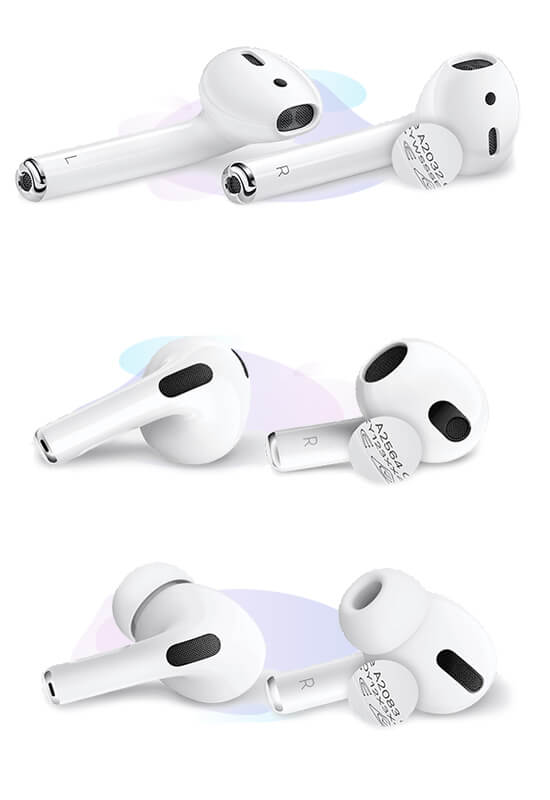
Due to the small size of the AirPods, you will need to use a magnifying glass to see the model number, which should not be confused with the serial number.
- Take a look at your AirPods and search for light gray text and numbers
- For earbuds type: Look near the stem’s base.
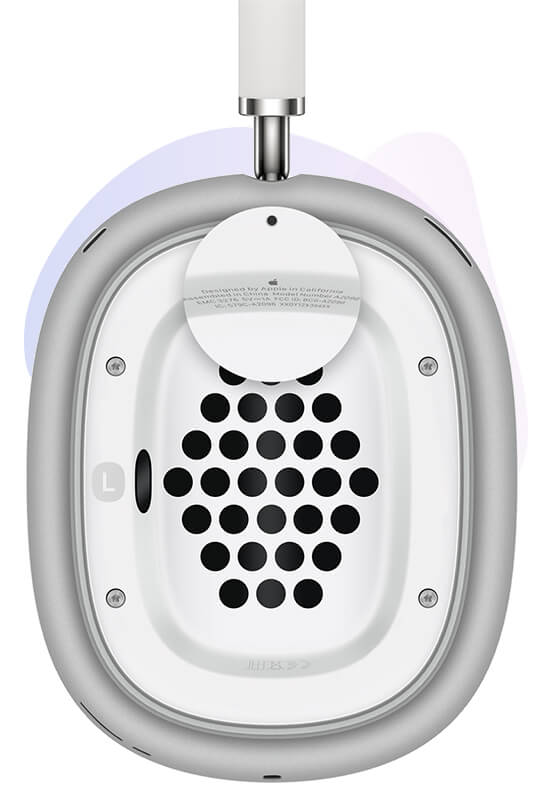
- For the over-ear type: Check the upper inside (near where the over-ear piece connects to the headband)
Model Name Model Number Release Year AirPods Max A2096 2020 AirPods Pro (2nd Generation) A2931, A2699, A2698 2022 AirPods Pro (1st Generation) A2083, A2084 2019 AirPods (3rd Generation) A2564, A2565 2021 AirPods (2nd Generation) A2031, A2032 2019 AirPods (1st Generation) A1722, A1523 2017 3) Using Your Eyes: How to Tell What AirPods You Have by Sight
If you now have the model number of your AirPods, it’s time to figure out which version of AirPods or what series of AirPods you have by matching them with our list.
We made a list that you can use as a reference.
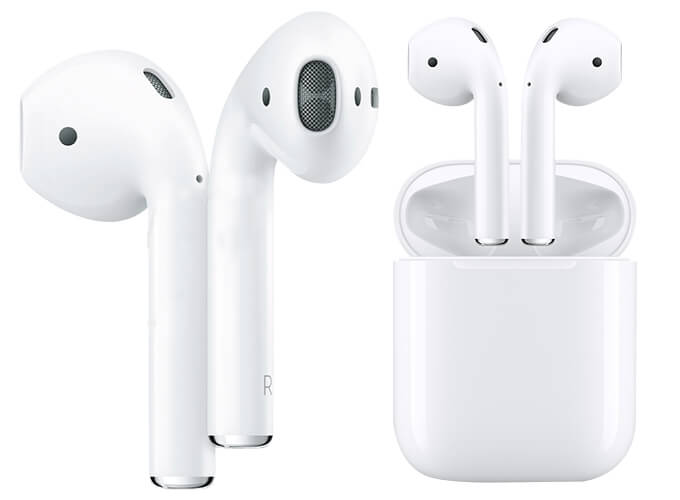
AirPods (1st generation)
Click image to enlarge
The first-generation AirPods are well-made headphones with a plastic casing and brushed aluminum, giving the earbuds a top-quality appearance to suit their price. These AirPods come in white and have microphones that reduce background noise during phone calls.
They can be recharged with the AirPods charging case. They innovatively connect to your iOS device and have a battery that can last up to 27 hours.
Trade-in Value: None
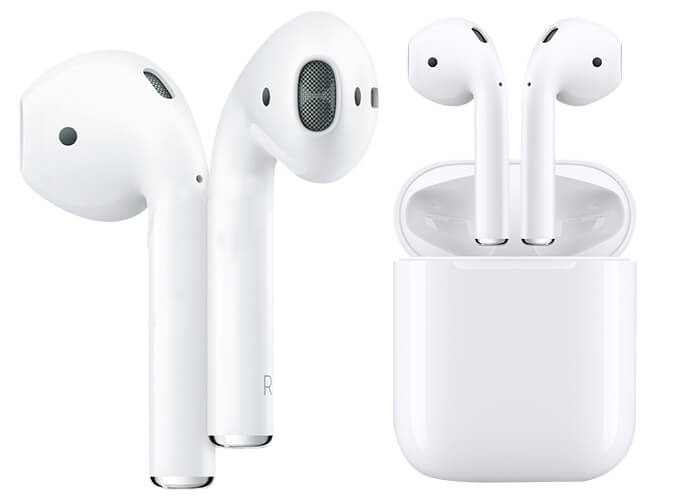
AirPods (2nd generation)
Click image to enlarge
The second-generation AirPods are available in white and are known for their long-lasting battery. They can deliver five hours of listening time and up to three hours of talk time. Second-generation AirPods are recharged with a lightning charging case.
The Airpods (2nd generation) are nearly identical to the first-generation AirPods, with only minor differences. They are open-back earbuds that do not restrict ambient noise but are ideal for outdoor activities.
Trade-in Value: AirPods 2nd Gen
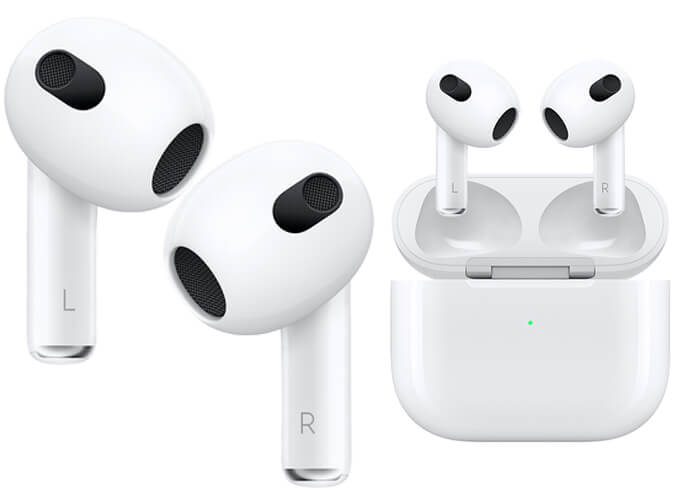
AirPods (3rd generation)
Click image to enlarge
The third-generation AirPods have a slightly different appearance than previous generations of AirPods and include a few more features and an improved battery.
The stems for the AirPods (3rd generation) are shorter compared to the 2nd generation’s. Aside from the “Hey, Siri” feature, it also has a force sensor for controlling music and calls.
Trade-in Value: AirPods 3rd Gen
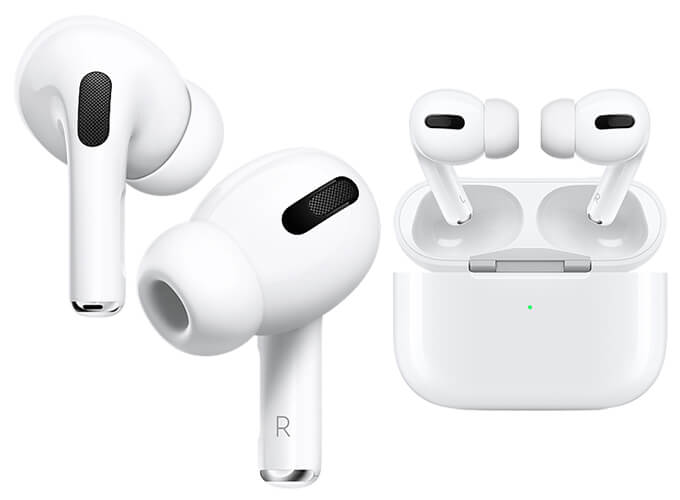
AirPods Pro (1st Generation)
Click image to enlarge
AirPods Pro have active noise cancellation, a valuable feature for commuting. They have longer battery life and a simpler touch control scheme.
Apple sells the AirPods Pro in white. They’re in-ear headphones that can be recharged with the AirPods Pro charging case.
Trade-in Value: AirPods
AirPods Pro (2nd Generation)
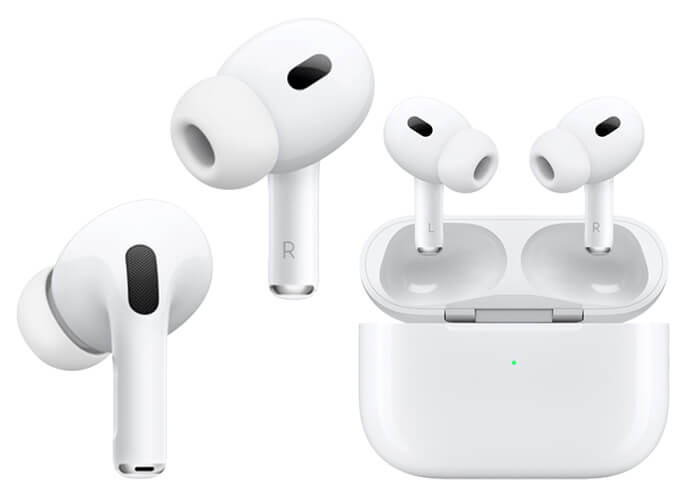
Click image to enlarge
The AirPods Pro second generation comes in white and has an H2 chip that enables smarter noise cancellation and 3D sound.
It looks identical to the first-generation AirPods Pro, but Apple has added a new feature called Enhanced Touch control. Users can use this to play music from the stem while gently swiping up or down to adjust the volume.
Trade-in Value: AirPods Pro 2
AirPods Max
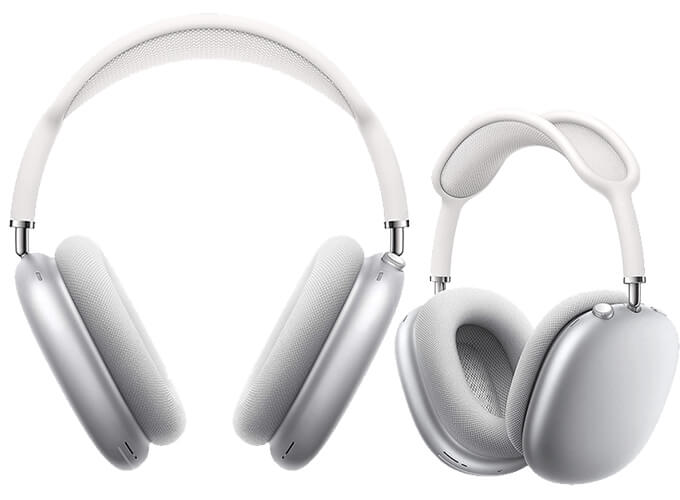
Click image to enlarge
The AirPods Max are high-end over-ear headphones with active noise cancellation. They have an over-ear design and a customized mesh textile wrapping the ear cushions. The pair comes with a stainless steel frame and anodized aluminum cups.
AirPods Max have over 21 hours of playback time, which should be sufficient for most people.
Trade-in Value: AirPods Max
4) Identify Your AirPods with the Charging Case
The AirPods case serves as storage and as a charger for the device. It usually comes with a lighting connector, and it has a status light.
There are five different charging cases for the AirPod generations where you can check your AirPods’ model number and the serial number.