USB-токен: что это такое и как пользоваться
По данным аналитиков «Лаборатории Касперского», в 2017 году было предпринято более 260 млн попыток фишинговых атак — это один из способов получить все ваши пароли и данные. От этого может не спасти даже двойная аутентификация через СМС или специальное приложение.
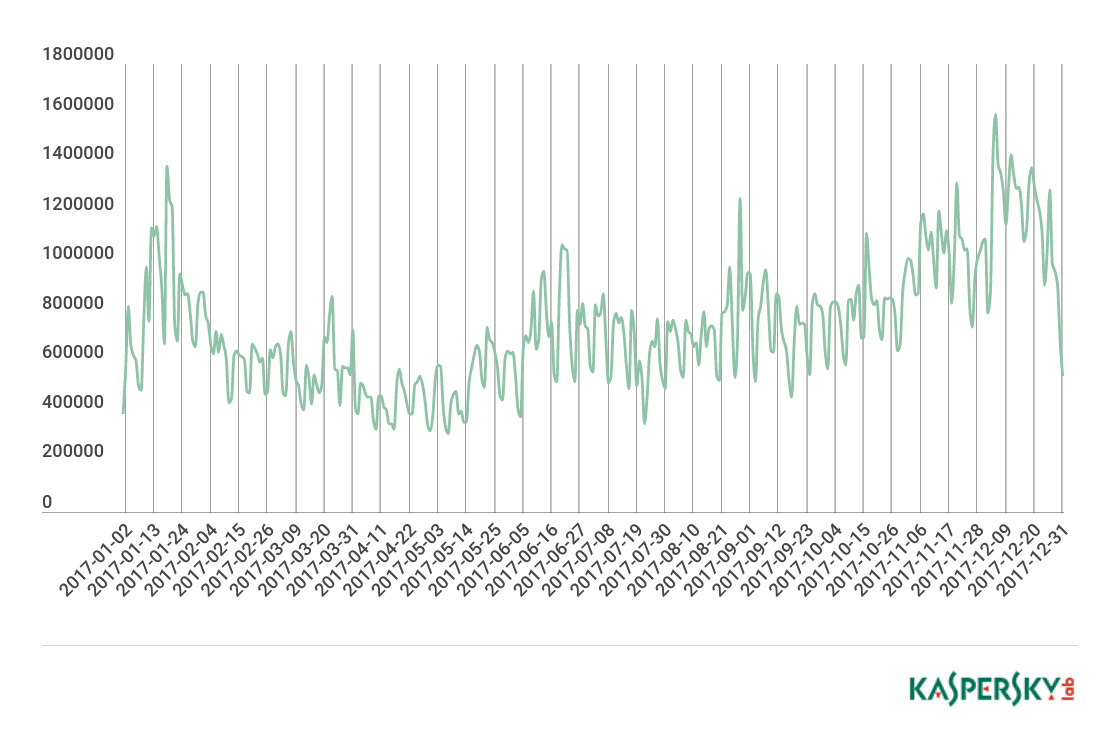 График попыток фишинговых атак
Но люди придумали такую штуку, как USB-токен — она лучше защищает ваши данные. Рассказываем, почему этот способ более надежный и как правильно все настроить.
Что это такое и как работает?
USB-токен — небольшое устройство, похожее на обычную флешку. Внутри них специальный уникальный код, заменяющий другие способы двойной аутентификации.
По факту его можно сравнить с ключом от вашей квартиры — если ключ в компьютере, то вы можете войти в свой аккаунт. Только здесь разница в том, что ваш аккаунт гораздо сложнее взломать отмычкой.
Почему это надежнее двойной аутентификации?
Обычная двойная аутентификация работает так: вы вводите пароль от почты, вам по СМС приходит код подтверждения для входа в аккаунт. Получается, что если у злоумышленника нет вашего смартфона, то зайти под вашим логином он не сможет. Но на самом деле это не совсем так.
Почти у всех сервисов с такой функцией злоумышленник может перехватить ваш код от аккаунта из-за общей уязвимости, заключенной в системе SS7. Через нее любой человек может следить за вашим смартфоном — слушать разговоры и читать все сообщения. Операторы эту проблему не признают, хотя ей уже больше 30 лет.
Приложения-аутентификаторы, вроде Google Authentificator, в этом плане надежнее. Для вас каждые 30 секунд генерируется новый пароль — его знают только ваш смартфон и аккаунт в интернете. Но даже так хакеры могут до вас добраться, особенно если вы доверчивый.
Злоумышленник может получить доступ к этим кодам безопасности на этапе настройки приложения. Кроме того, вас могут обмануть и вы зайдете на фальшивый сайт Google, где сами выдадите все пароли хакерам.
Да кто будет пользоваться этими «флешками»?
Все сотрудники из Google этим пользуются и очень довольны. В начале 2017 года все работники корпорации перешли на этот способ аутентификации своих аккаунтов. Как итог — за этот год не произошло ни одной кражи личной информации.
Теперь в Google считают, что USB-токены — самый надежный способ защитить свой аккаунт. Вот так.
Все слишком хорошо! Какие подводные?
Да, подводные камни здесь есть. Пока полноценно эти токены поддерживаются только в двух браузерах — Google Chrome и Opera. В Firefox это реализовали через расширение, а в Edge обещают добавить позже. Разработчики Safari вообще об этой функции ничего не говорят.
И еще один недостаток связан со смартфонами. Чтобы войти в аккаунт на своем Айфоне, вам понадобится ключ с Bluetooth — он стоит немного дороже. Еще можно попробовать переходник, но мы этот способ не проверяли, так что может не сработать.
Это не страшно. Как начать пользоваться ключом?
В первую очередь — вам нужен тот самый USB-токен. Его можно купить в интернете — в России проще всего достать JaCarta U2F. Я купил такой за 1500 рублей.
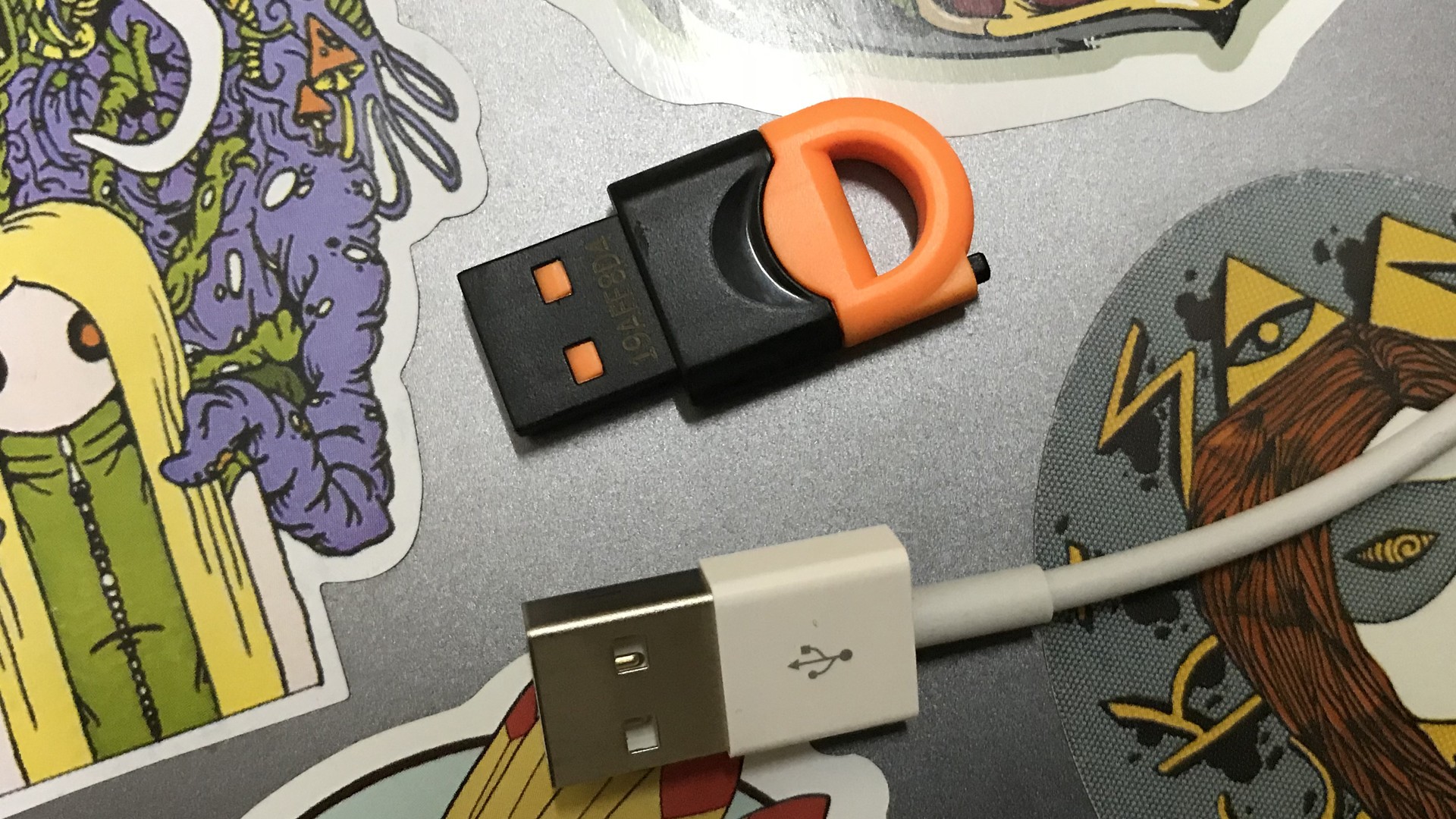 Так выглядит USB-токен Jakarta U2F
Процедура настройки ключа практически везде одинакова, поэтому мы покажем настройку на примере аккаунта в Google.
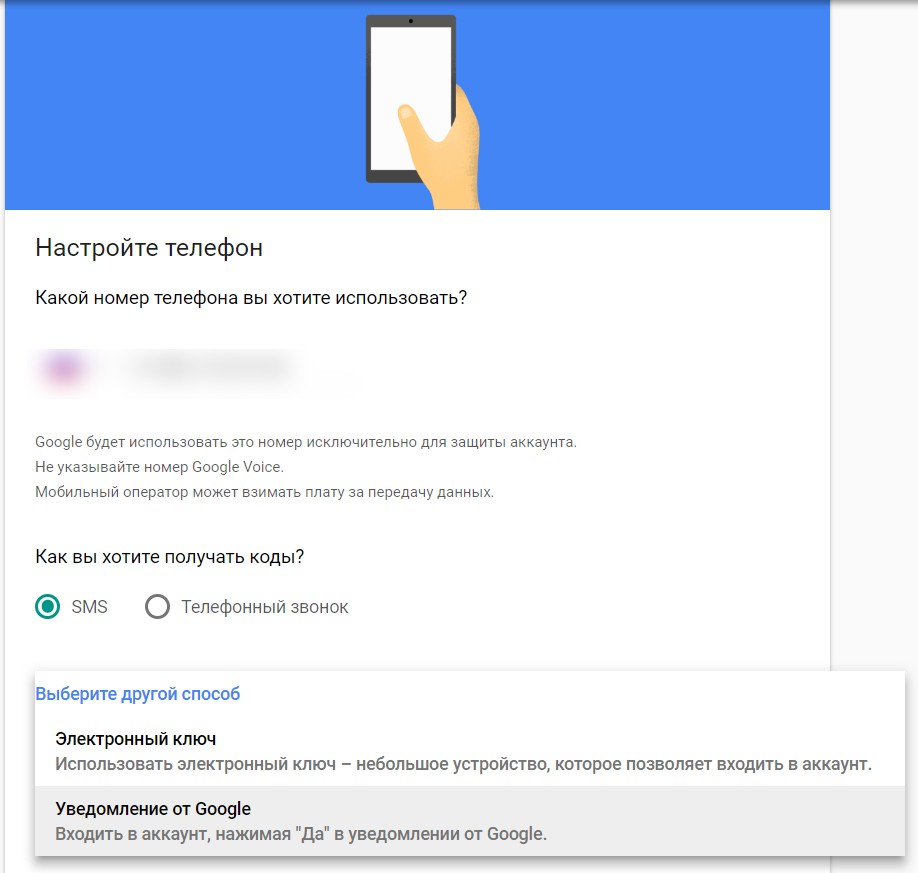
1 — Войдите в настройки двойной аутентификации аккаунта. Нажмите на «Выберите другой способ» и выберите там электронный ключ:
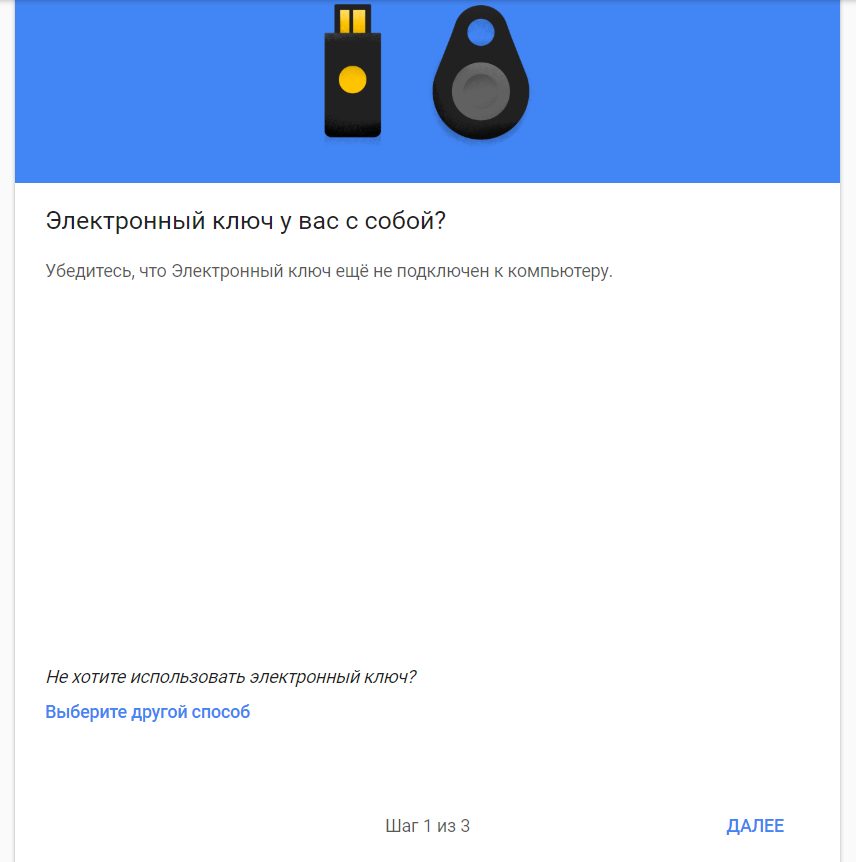
2 — Подключать ключ к компьютеру сразу нельзя. Убедитесь, что он у вас в руке и жмите «Далее»:
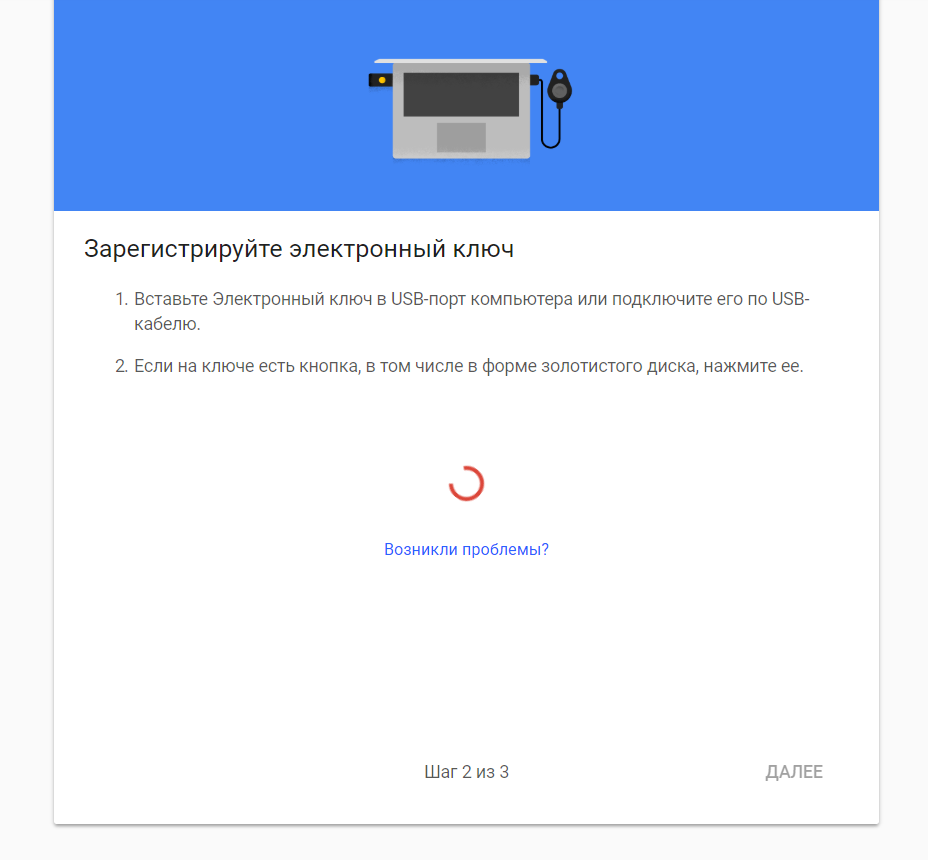
3 — Вставьте ключ в USB-разъем и нажмите на нем кнопку:
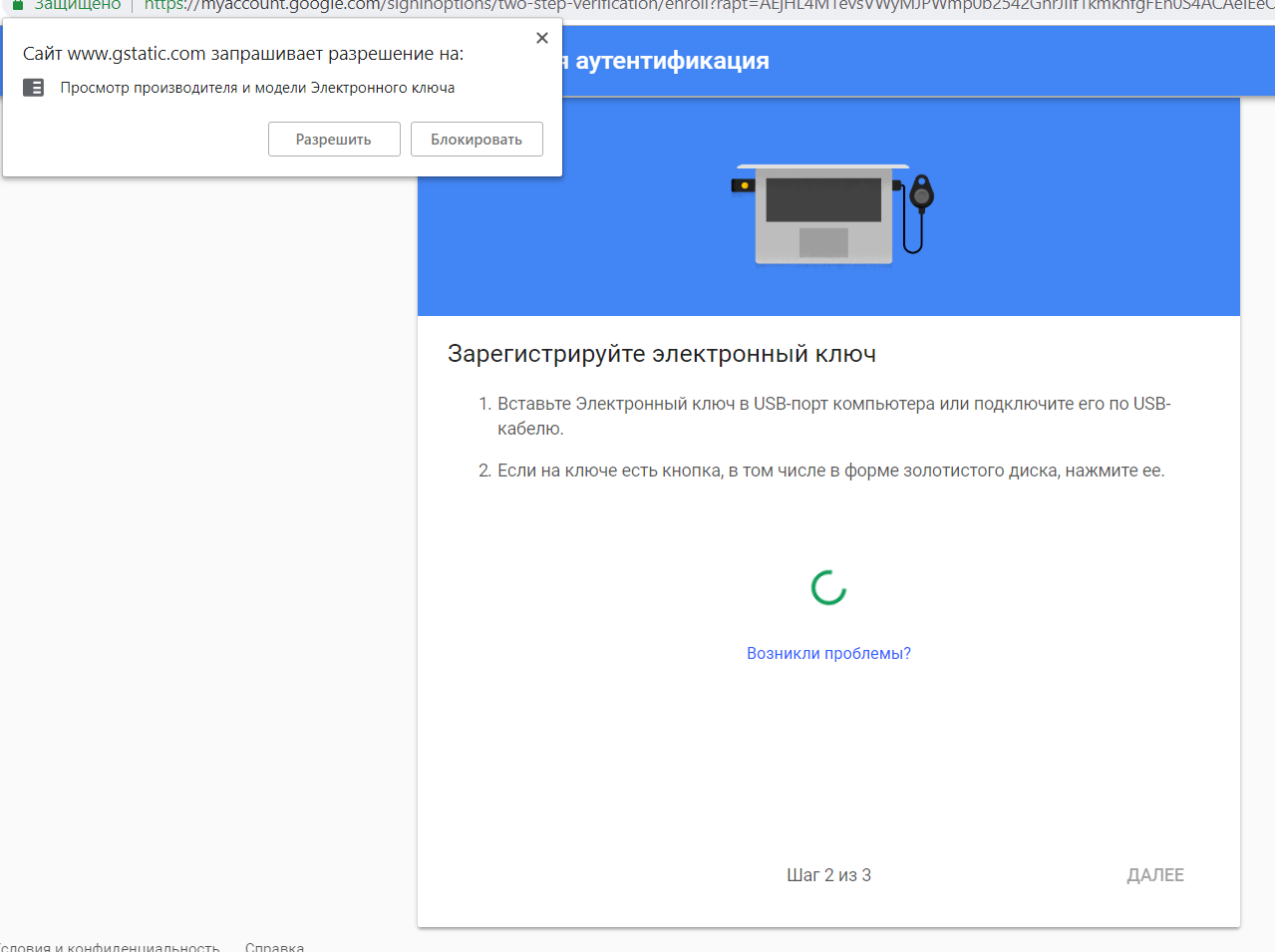
Ключ загорится красным светом, а браузер попросит разрешения на доступ к устройству:
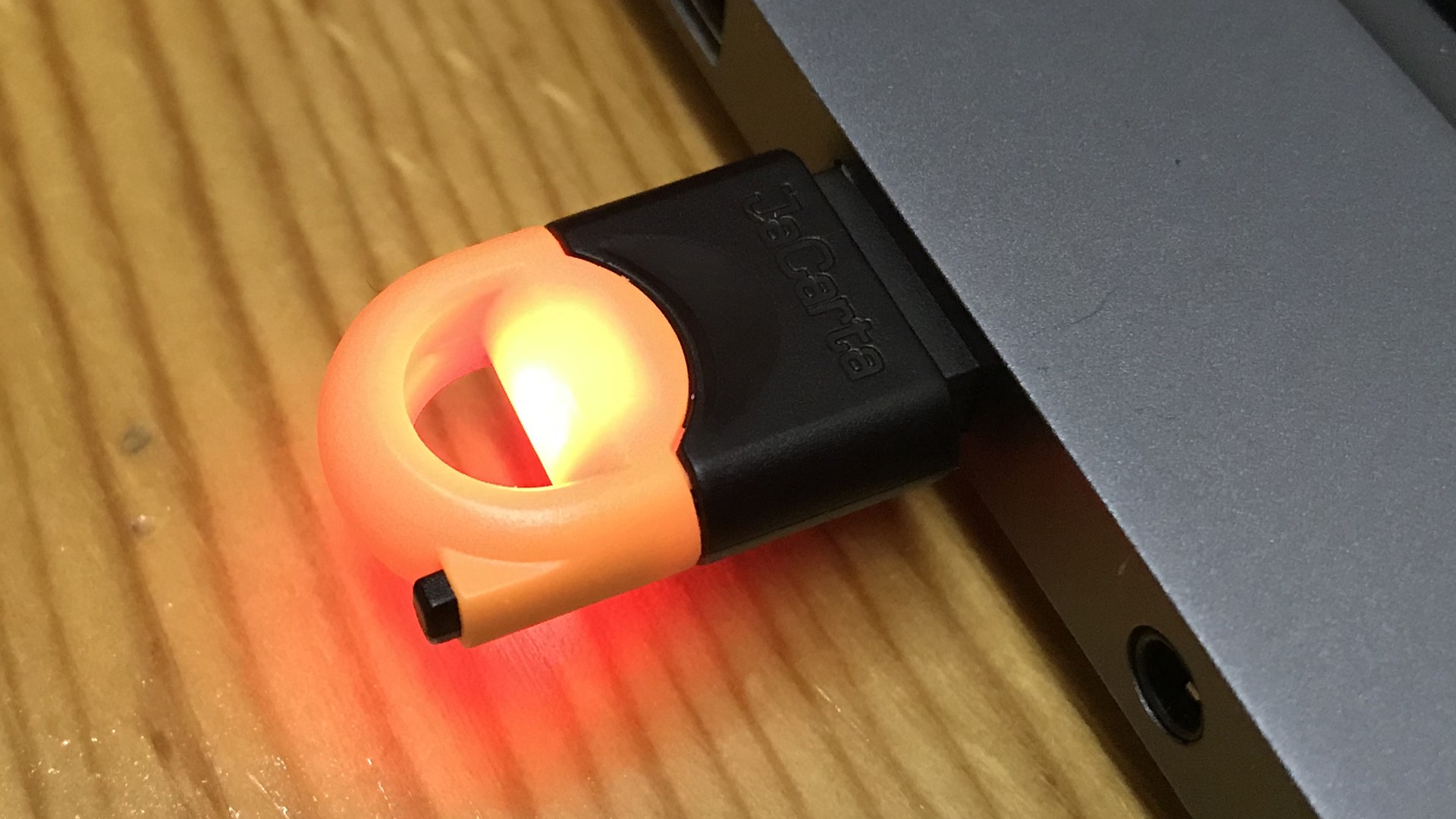 Маленькая черная штучка — кнопка. На нее нужно нажать после подключения ключа
4 — Ваш ключ зарегистрируется и вам нужно будет придумать ему имя:
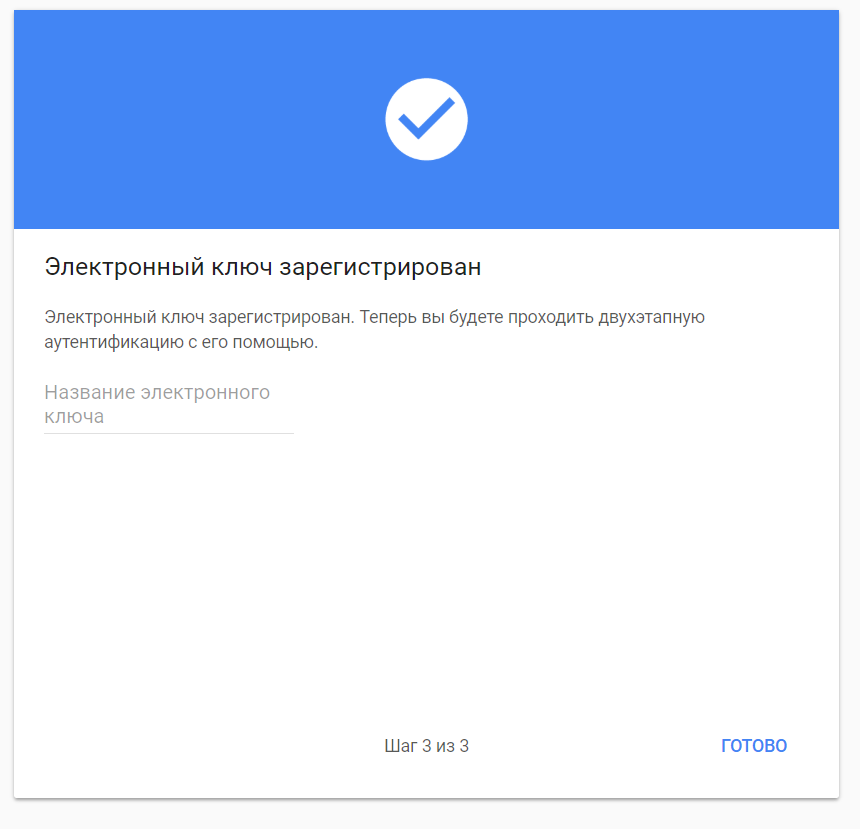
5 — Готово! Теперь добавьте дополнительные способы входа в аккаунт — через приложение или СМС-код. Это нужно, если вы потеряете свой токен. Но я этого делать не буду.
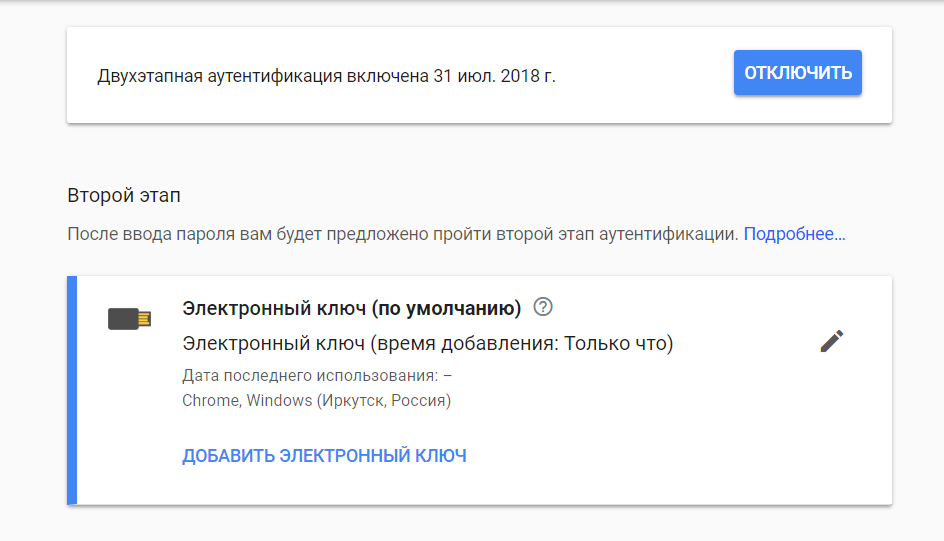
А теперь небольшой челендж для читателей. Вот все данные аккаунта, на котором я установил свой USB-ключ:
Если вы сможете войти в этот аккаунт до 15 августа и оставить мне там послание, то я вам перечислю 5 тысяч рублей. Вперед, хакеры!
Code Signing with USB Tokens: A Comprehensive Guide
USB, hardware, or cryptographic tokens are portable devices that securely store cryptographic keys. These tokens typically connect to a computer or other devices via USB.
USB tokens offer a compact and convenient solution for storing and protecting sensitive cryptographic keys, certificates, and other credentials.
They are designed to provide strong encryption, tamper-resistant hardware, and secure key storage. USB tokens are often used when individuals need to authenticate themselves or perform cryptographic operations securely, such as code signing, digital signatures, or two-factor authentication.
What does this Blog offer?
The post will discuss:
- Implications of the new requirements on automated build processes The difficulties encountered when incorporating hardware-based certificates into such environments.
- Limitations and complexities of using physical hardware devices for code signing in automated workflows.
- How to navigate these challenges
- Alternative approaches or solutions that allow for smoother integration of hardware-based code signing certificates into automated build systems.
Overall, the blog post aims to provide guidance and recommendations for developers and organizations facing upcoming code signing certificate requirements changes.
Addressing the issues and offering workarounds aims to help stakeholders adapt to the evolving landscape of code signing. Also, to maintain efficiency and security in their development processes.
What are the General Types of Hardware Devices?
We will discover three significant types of hardware below to understand the process of signing the code with USB Tokens.
Network HSMs
Network-attached Hardware Security Modules (HSMs) are specialized devices that store cryptographic keys and perform cryptographic operations securely. These hardware devices are typically connected to a network infrastructure, allowing them to be accessed remotely by multiple systems or applications.
Network-attached HSMs provide a secure and centralized platform for an organization’s key management and cryptographic functions. They offer tamper-resistant hardware protection, strong access controls, and encryption mechanisms to ensure the confidentiality and integrity of cryptographic operations.
It connects to a network infrastructure, allowing it to be accessed remotely by multiple systems or applications. This connectivity enables centralized key management and cryptographic operations across an organization, making it an ideal solution for enterprises with distributed infrastructure or cloud-based environments.
USB Tokens
USB, hardware, or cryptographic tokens are portable devices that securely store cryptographic keys. These tokens typically connect to a computer or other devices via USB. USB tokens offer a compact and convenient solution for storing and protecting sensitive cryptographic keys, certificates, and other credentials.
They are designed to provide strong encryption, tamper-resistant hardware, and secure key storage. USB tokens are often used when individuals need to authenticate themselves or perform cryptographic operations securely, such as code signing, digital signatures, or two-factor authentication.
Cloud HSM
Cloud HSMs, or Hardware Security Modules as a Service (HSMaaS), are HSM devices offered by cloud service providers. These HSMs are hosted and managed in the cloud, providing a convenient and scalable solution for organizations that require secure key management and cryptographic services.
Cloud HSMs offer the same security and functionality as physical HSMs but eliminate the need for on-premises hardware infrastructure. They allow organizations to leverage HSM capabilities in a cloud environment, enabling secure cryptographic operations and key storage for cloud-based applications and services.
Why is Code Signing with USB Tokens Change necessary?
Code signing with USB tokens is necessary due to the increasing concerns surrounding the security of signing certificates digitally.
Recent incidents, such as the SolarWinds supply chain hack and the theft of NVIDIA’s code signing certificates, have highlighted the vulnerabilities associated with traditional file-based certificate storage.
These incidents have raised alarms within the industry, prompting organizations to reassess the trust and security of certificate issuance. Particularly for Microsoft, measures are taken by developers to protect these certificates.
Trust is a crucial element when it comes to certificates, as they guarantee the authenticity and integrity of software.
The proposal to change the requirements for how issued certificates are stored, which was adopted by the CA/Browser forum, addresses these concerns.
The change advocates using hardware-based solutions like USB tokens to store code signing certificates. This shift aims to enhance the security of certificates by making it significantly more challenging to steal hardware devices compared to files stored on traditional systems.
Significance of the USB Tokens or Similar Secure Hardware
Utilizing USB tokens or similar secure hardware dramatically reduces the risk of unauthorized access or theft of digital signing certificates.
Hardware tokens provide an additional layer of protection, as they typically employ strong encryption and tamper-resistant mechanisms.
This strengthens the overall security posture of code signing processes and mitigates the potential for malicious actors to misuse or compromise the certificates.
In essence, the move towards code signing with USB tokens is driven by the need to bolster the security of code signing certificates and prevent unauthorized use or abuse.
It acknowledges the limitations of file-based storage and aims to establish a more robust and trusted framework for code signing by storing certificates on hardware devices that are more difficult to compromise.
As the industry strives to reinforce trust in certificate issuance and utilization, adopting hardware-based solutions for code signing certificates represents a logical and practical step forward.
It aligns with the overarching goal of ensuring software integrity and authenticity while addressing the vulnerabilities exposed by recent security incidents.
What are the Changes incorporated in Code Signing Certificates?
Starting June 1, 2023, new and reissued OV and IV code signing publicly trusted certificates must be issued. Also, you can store them on a pre-configured secure hardware device by the issuing certificate authority (CA).
These devices must meet stringent security standards such as FIPS 140 Level 2, Common Criteria EAL 4+, or matching criteria.
It is important to note that existing OV/IV certificates will remain functional. However, if you require a reissuance of your certificate, you may encounter challenges due to updated key size requirements. Therefore, it is crucial to safeguard your existing certificate and avoid its loss.
In practice, most certificate providers have already transitioned to issuing certificates on tokens or discontinued the sale of OV/IV certificates altogether.
This marks the end of the conventional practice of downloading a pfx file for code signing. The shift towards secure hardware devices ensures higher protection for code signing certificates, reducing the risk of unauthorized access and enhancing overall security.
Developers and organizations must stay informed about these changes to certificate issuance and storage requirements. Adapting to the updated standards and adopting secure hardware devices will contribute to maintaining integrity.
You can also have a trustworthiness of code signing processes, safeguarding digital assets, and mitigating potential security risks.
Locked In:
“locked-in” refers to securing cryptographic keys or sensitive data within a specific hardware device or security module. When a key or data is locked into a device, unauthorized individuals cannot easily extract or access it. This approach enhances the security of cryptographic operations by reducing the risk of crucial exposure or compromise.
Hardware devices such as HSMs, cloud HSMs, and USB tokens employ techniques to lock cryptographic keys, including encryption, physical security mechanisms, and access controls, ensuring the keys remain protected and isolated from external threats.
How to Set up a USB Token?
USB tokens used for code signing typically require the presence of the physical token (plugged into the machine) during the signing process.
Depending on the manufacturer or specific device, these tokens may utilize different client software or drivers. Despite these variations, the critical requirement remains: the USB token must be physically secure.
Although resembling a regular memory stick, the USB token plays a critical role in the security of code signing operations. It serves as a secure storage device for cryptographic keys and certificates, ensuring that only authorized individuals with access to the token can perform code signing tasks.
By requiring the physical presence of the USB token, the system adds an extra layer of security by preventing unauthorized access to the signing process.
However, there can be challenges when using USB tokens in specific environments.
For example, in the context of USB passthrough, which allows direct access to USB devices from virtual machines, Hyper-V Server does not support this feature. This limitation can complicate using USB tokens for code signing within Hyper-V Server environments.
Alternative virtualization platforms such as XCP-ng may be used to work around this limitation. XCP-ng supports USB passthrough, enabling the USB token to be accessed directly by virtual machines for code signing purposes.
Nevertheless, configuring USB passthrough in XCP-ng can be complex and time-consuming, adding potential hassle to the setup.
Steps to Set Up USB Remotely
Regarding alternatives for USB passthrough, VirtualHere (VH) is a highly recommended option that offers excellent functionality and competitive pricing. Unlike vendors who may not explicitly support code signing tokens, VirtualHere has been proven to work effectively with such tokens.
VirtualHere Server is compatible with various operating systems, including Windows, Linux, macOS, NAS servers, and even Raspberry Pi. The server license is tied to the host machine, so you must purchase an additional license if you decide to move the USB token to another host.
However, considering the affordable $49, it is unlikely to impose a significant financial burden.
- To implement VirtualHere, install the VH server software on your XCP-ng host and connect the USB token to the server.
- Then, on your Windows machine, install the VirtualHereclient software.
- The client can automatically detect servers, but in cases where the machines are on different subnets, manual configuration may be required.
- Upon connecting to the VH server, a message box may appear when using the trial version.
- The client will display a tree of the USB devices connected to the server, including the SafeNet token called “Token JC.”
- By right-clicking on the token, you can select “Auto use this device,” ensuring automatic connection in the future.
- When the connection is established, the familiar Windows sound notification indicates the successful detection of a newly plugged-in device.
- Since the SafeNet software is already installed on Windows, it shouldn’t prompt for any additional drivers/ configurations.
By leveraging VirtualHere, you can overcome the limitations of USB passthrough and seamlessly utilize USB tokens for code signing within your virtualized environment.
The straightforward setup process and reliable performance of VirtualHere make it a viable solution for securely accessing USB tokens across different machines and subnets.
Further Challenges of USB Tokens
An additional challenge USB tokens pose during code signing is the requirement for human presence due to password prompts. This contradicts the principle of automating processes. However, a workaround specifically for the SafeNet token can address this issue.
To begin, open the SafeNet Authentication Client Tools and click on the Advanced View button (represented by a gear icon). You might be prompted to do so if you still need to enter the token password.
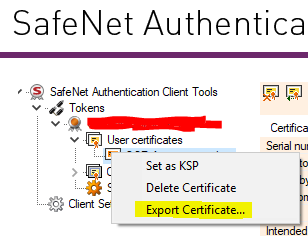
In the left-side tree view, right-click on the certificate (located under User certificates) and choose the “Export certificate” option. It’s important to note that this exported certificate does not include the private key on the USB token. Therefore, it can only be used on machines with access to the USB token.
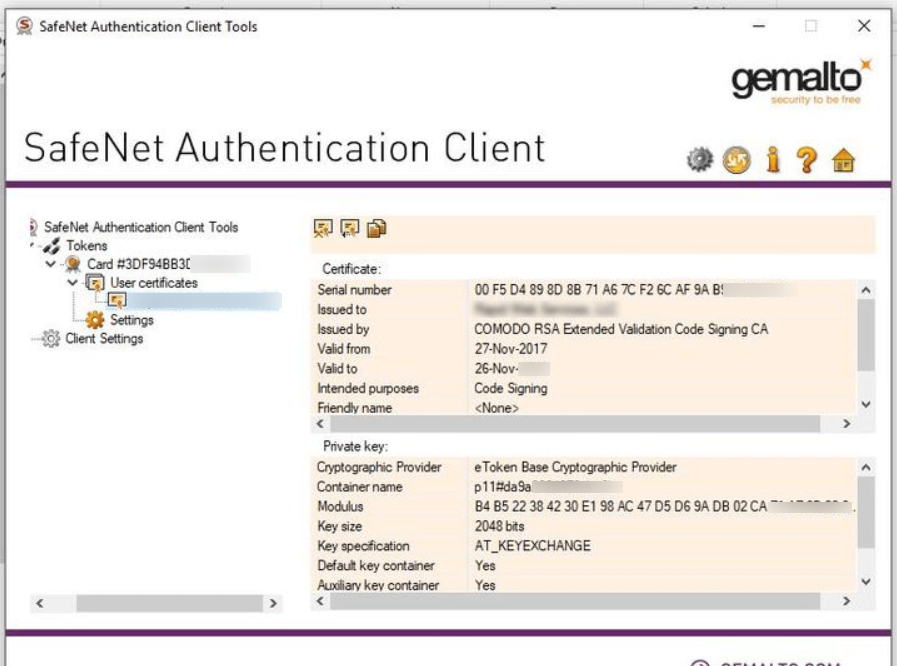
In the certificate view, pay attention to two fundamental values: the Cryptographic Provider value (typically “eToken Base Cryptographic Provider“) and the Container Name (e.g., p11#xxxxxxxxxxx).
Unfortunately, the SafeNet Authentication Client Tools do not support clipboard functionality, so you must manually type out these values and save them for future reference. These values will be necessary for your build process for code signing.
While still in the Client Tools, select Client Settings and navigate to the Advanced tab. Enable the “Enable single Login” and “Enable single Logon for PKCS#11” options, and set the Automatic Logoff option to Never. Save the changes and close the client application.
By following these steps, you can configure the SafeNet token to minimize the need for manual intervention during code signing. The exported certificate and saved Cryptographic Provider and Container Name values can be utilized in your automated build process.
Enabling the single login and logon options ensures the token remains accessible throughout the signing process without continuous password prompts.
Тестируем JaCarta WebClient или храните токены в сейфе
«Когда на мгновение чёрный покров отнесло в сторону, Маргарита на скаку обернулась и увидела, что сзади нет не только разноцветных башен с разворачиващимся над ними аэропланом, но нет уже давно и самого города, который ушёл в землю и оставил по себе только туман.»
М.А. Булгаков
«Мастер и Маргарита»
Привет, Хабр! Наверное почти в каждой российской организации есть эти изделия в весёлой разноцветной раскраске. Речь идёт об изделиях JaCarta и софте к ним. Привалило такое счастье и мне, и я решил немного раздвинуть чёрный покров скрывающий их сущность, сиречь API. Некоторые банки, особенно выдающие своим клиентам токены JaCarta ГОСТ-2, для работы требуют установки приложения JC-WebClient от «Аладдин Р.Д.».
Хотя на официальном сайте разработчика свежего дистрибутива нет (в разделе Демо можно скачать более старую версию, но она использует устаревший API), дистрибутив можно найти с помощью гугла по строке «JC-WebClient-4.0.0.1186» на сайтах ДБО.
После установки приложения на компе пользователя открывается порт 24738 на котором работает этот клиент.
На сайте разработчика открыто и подробно описан API этого приложения (как и функции работы с файловой системой всей линейки токенов этого производителя через jcFS.dll, входящей в установочный пакет «Единый клиент JaCarta») и суть в том, что с помощью ряда функций можно или подписать ЭЦП находящейся на токене что угодно, подобрав пин код, или заблокировать токен неудачными попытками его ввода. И всё это дистанционно, через интернет.
Не секрет, что пользователи часто оставляют у токена пин код по умолчанию, или тот с которым его получили (обычно боятся, что при смене пин кода всё перестанет работать).
Чаще всего используются пин коды вида 123456, а токен в течении рабочего дня, а то и круглосуточно, воткнут в порт компа или usb хаба.
Благодаря JC-WebClient, если такому пользователю подсунуть вебстраницу или письмо с нехитрым JavaScript’ом, то появляется возможность хотя и не получить ключи токена (это в ряде случаев возможно только путём непосредственного доступа к файловой системе токена, пример здесь уже давался), но попытаться подобрать пин код и подписать какие-либо данные и куда-то их отправить.
В случае 10 неудачных попыток перебора токен блокируется, и как часто это бывает, если не установлен пин код администратора для разблокировки, то поможет только инициализация. А это не в срок уплаченные налоги (и как результат пени и даже блокировка расчётного счёта организации налоговой), неустойки от поставщиков, в общем хорошего мало.
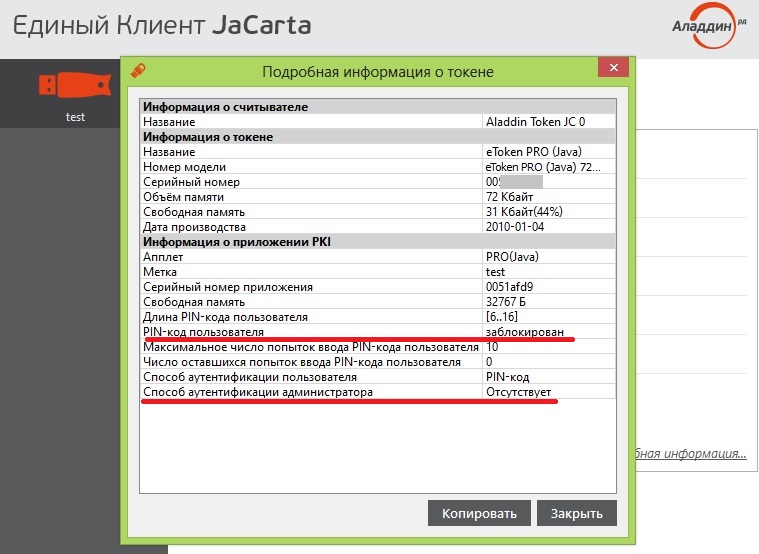
Проблему с перебором пин кода можно было бы решить или сделав возможность его ввода только через интерфейсное окно JC-WebClient, или как полумера, в случае например 3-х неудачных попыток его ввода, блокировать дальнейшую авторизацию, выведя сообщение пользователю, и ожидать пока он не подтвердит свои действия.
Я написал небольшой тестовый скрипт, который показывает эту уязвимость. Скрипт работает на всех современных и относительно современных браузерах, даже IE 🙂
Естественно он ничего никуда не отправляет, а просто выводит на экран результаты работы последовательности функций.
В скрипте реализован полный перебор 10 попыток ввода пин кода «на убой» токена, поэтому запускать скрипт можно только с тестовым токеном!
Также следует помнить, что применение этого скрипта иначе кроме как на собственном тестовом токене является нарушением законодательства.

Скрипт генерации ключевой пары и сертификата средствами JC-WebClient для тестирования.
Использовать можно EToken PRO Java 72 K, JaCarta ГОСТ, JaCarta ГОСТ-2. Токен должен быть предварительно инициализирован с пин кодом пользователя 111111.
Перед началом тестирования необходимо установить JC-WebClient версии не ниже 4.
Драйвера для JaCarta
Чтобы работать со смарт-картами и токенами JaCarta недостаточно просто подключить их к компьютеру, для полноценного администрирования нужно устанавливать специальное программное обеспечение.
Разберёмся, как установить драйвер для JaCarta и дополнительные программы.
Установка программного обеспечения
Во время установки важно помнить о двух правилах: носитель не должен быть подключён, а все действия нужно выполнять от имени администратора.
Вы можете приобрести подходящий носитель в нашем каталоге → «Каталог носителей». Драйвер для JaCarta LT — это единый клиент JaCarta, инструкцию к установке которого мы приведём ниже.
Единый клиент JaCarta
Скачать ПО «Единый клиент JaCarta» можно на официальном сайте, нужно только выбрать подходящий под операционную систему дистрибутив. Далее нужно последовательно выполнить следующие действия:
- Запустите установочный файл и нажмите «Далее».
- В окне «Лицензионное соглашение» примите условия и нажмите «Далее».
- Выберите вид установки — «Стандартная» или «Выборочная». Последняя позволяет выбрать компоненты, которые будут установлены, но для работы хватит и стандартной установки.
- В следующем окне нажмите кнопку «Установить».
После того как программа завершит установку, нажмите «Готово» и обязательно перезагрузите компьютер.
ПО для JaCarta PKI
Для токенов и смарт-карта JaCarta PKI предусмотрено дополнительное программное обеспечение, без которого они работать не будут. Скачать их также можно на официальном сайте в разделе «JaCarta PKI (с обратной совместимостью)», выбрав дистрибутив для Windows или Linux.
Порядок установки на Windows следующий:
- Откройте скачанный архив.
- Перейдите в папку «JaCarta_PKI(Aladdin)_for_Windows» и запустите установочный файл, который подходит по разрядности системы.
- Нажмите «Далее», а затем «Установить».
После этого нужно перезагрузить систему, а затем можно приступать к работе с JaCarta PKI.
Утилита для JaCarta Flash
Чтобы иметь возможность работы с Flash-памятью ключей JaCarta ГОСТ/Flash, JaCarta PKI/Flash и JaCarta PKI/ГОСТ/Flash, нужно устанавливать специальную утилиту. Скачать её можно здесь → «JaCarta Flash Utility».
Важно упомянуть, что при работе с утилитой, устройство не должно быть извлечено из компьютера. В скачанном архиве нужно запустить установочный файл и выбрать нужное устройство.
Выводы
Любое программное обеспечение, драйвер или утилиту, которые необходимы для работы с токенами и смарт-картами JaCarta, можно скачать на официальном сайте. Там же представлены ссылки на документацию к программам (инструкции и руководства).