Samsung Multi View: просмотр мобильного контента на экране ТВ
Жизнь современного человека уже невозможно представить без смартфона. Электронная почта, офисные приложения, мессенджеры, сёрфинг в Интернете, социальные сети — это лишь малая часть того, что позволяют делать сегодня даже недорогие смартфоны. Поэтому часто даже при просмотре телевизора мы не выпускаем смартфон из рук, продолжая параллельно листать любимые соцсети или общаться с друзьями в мессенджерах. По данным опроса, проведённым компанией Samsung, 92% участников во время просмотра телевизора не выпускают из рук телефон и смотрят на нём другой контент.
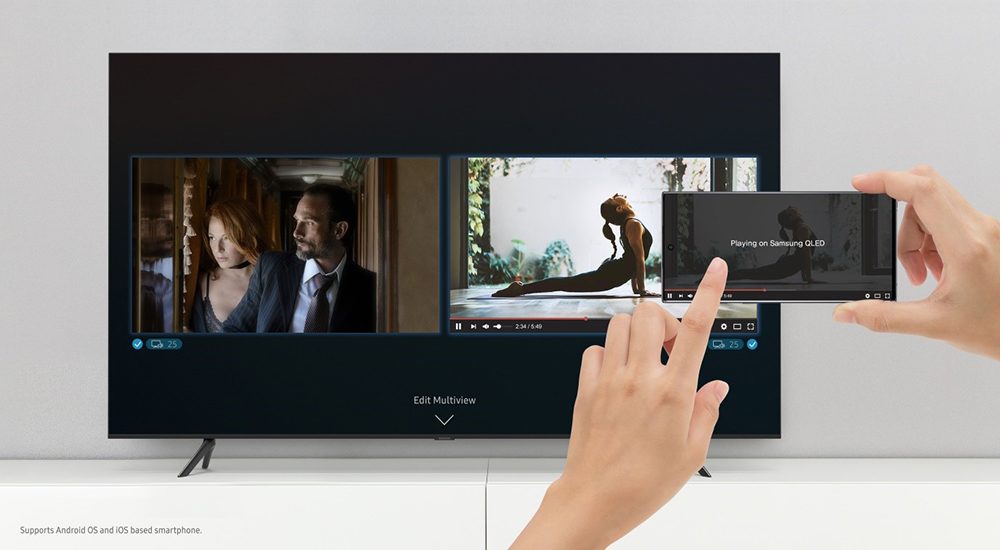
Компания Samsung в своих умных телевизорах Neo QLED, QLED и Crystal UHD предлагает несколько удобных технологий, позволяющих вывести одновременное использование мобильного устройства и ТВ на новый уровень. Например, благодаря технологии Multi View можно наслаждаться просмотром любимой телепередачи и использованием смартфона в одно и то же время, просто разделив экран на несколько частей. Таким образом, в левой части экрана будет продолжен показ телеэфира, а в правой части будет продублирован дисплей смартфона. В зависимости от модели, экран телевизора можно разделить на две–четыре. В каждую область можно вывести свой контент: телевизионный эфир, содержимое приложения (YouTube или любого другого потокового сервиса), картинку со смартфона и т. д.
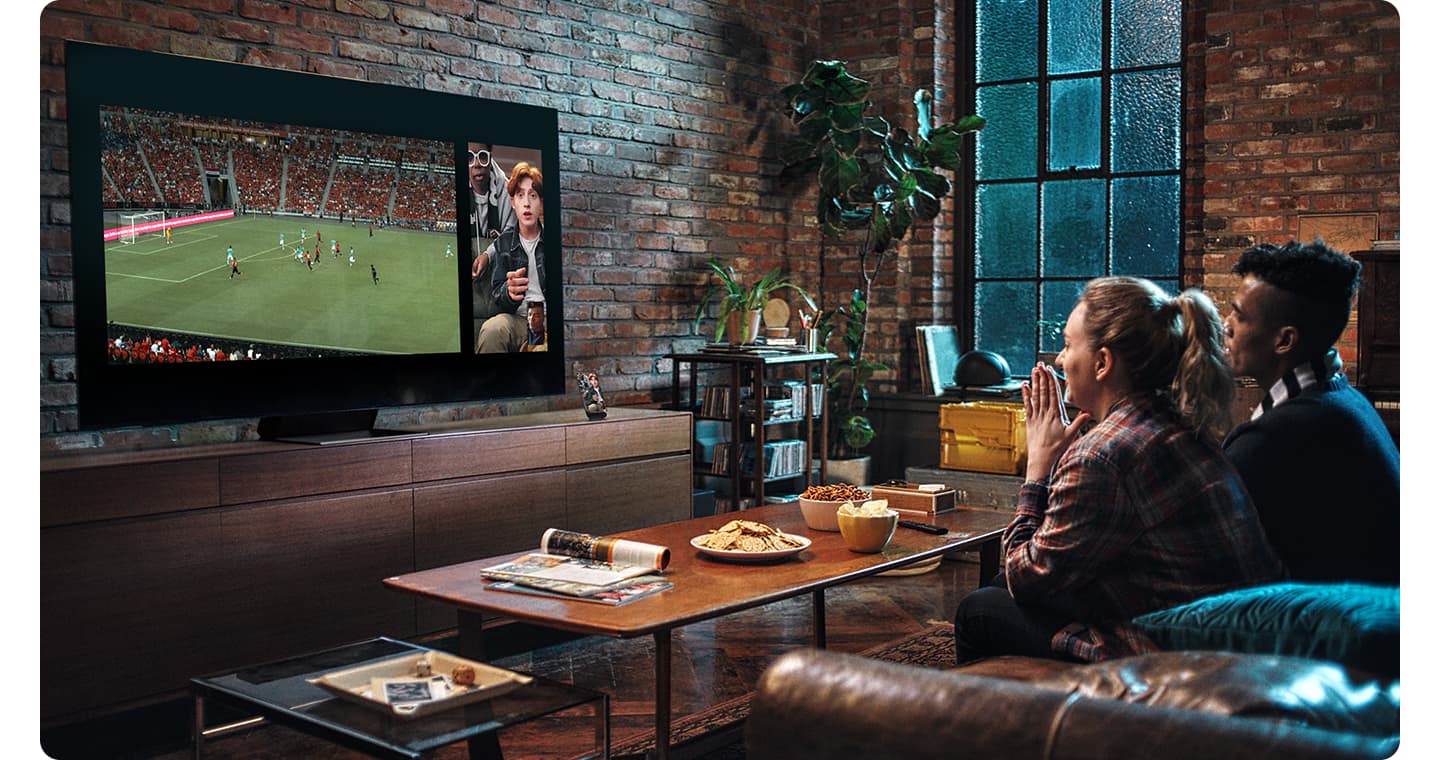
Подобная функциональность открывает новые возможности при просмотре того или иного контента. Например, можно связаться с друзьями или близкими по видеосвязи, и вывести картинку со смартфона на телевизор, продолжая смотреть на нём матч с участием любимой команды. Для полного погружения можно надеть футболки любимого клуба и болеть за свою команду вместе, словно находясь с друзьями на настоящем стадионе во время реального матча.
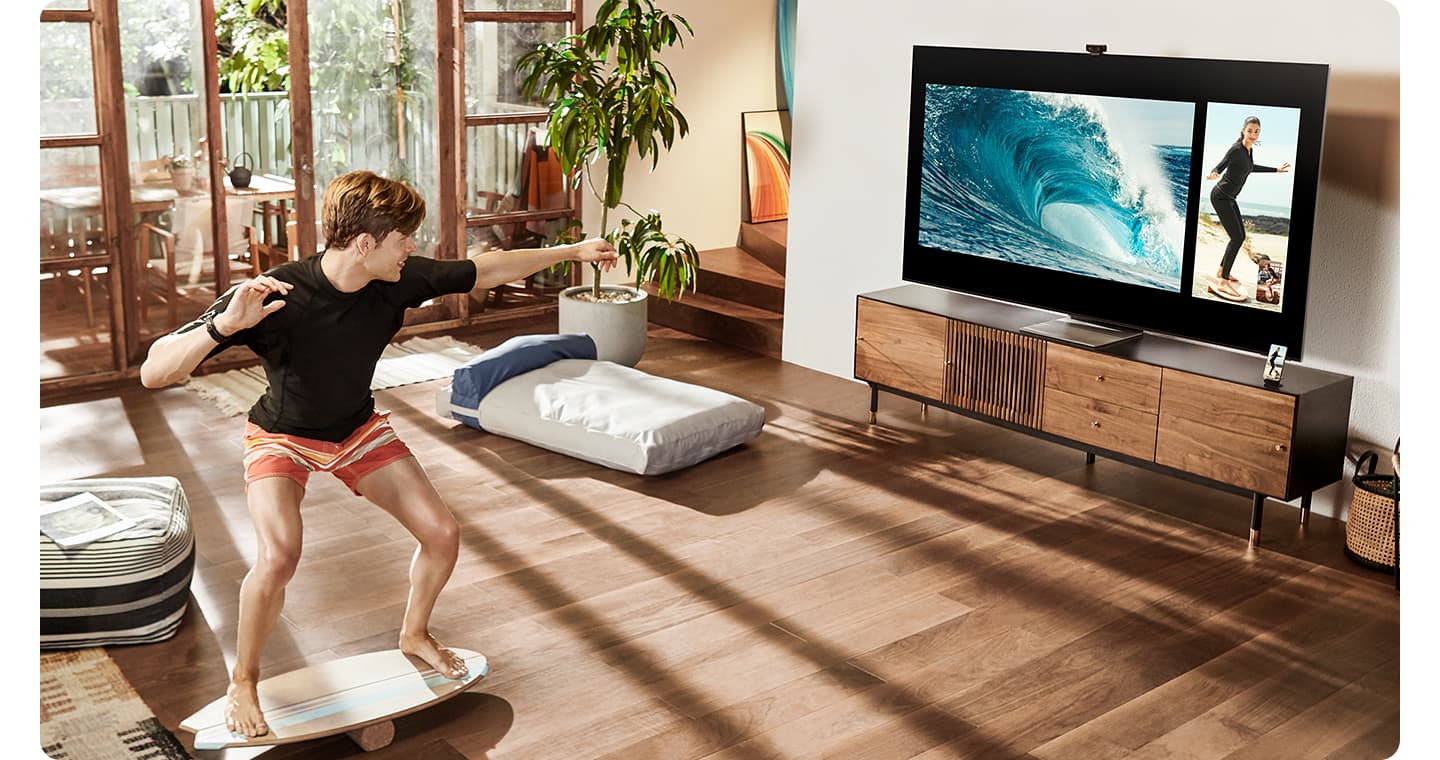
Из-за текущей ситуации в мире всё больше людей предпочитают походам в спортзал домашние занятия фитнесом. Но заниматься дома не обязательно означает заниматься в одиночку. Можно вывести на экран телевизора друга, подругу или коллегу в режиме видеосвязи и поддерживать свою форму вместе, подбадривая друг друга и делясь советами во время выполнения упражнений. Так скучная тренировка превращается в увлекательный фитнес-челлендж! Кто дольше простоит в планке, кто сделает больше отжиманий или кто быстрее сделает три подхода по десять повторений?
А тем, кто обычному спорту предпочитает киберспортивный, Samsung Multi View подарит новые впечатления. Если обычно сетевые игры подразумевают обмен репликами лишь с помощью обычной гарнитуры, то с помощью Multi View можно видеть друг друга на экране телевизора и делиться полным спектром эмоций во время совместного сеанса игры по сети. Военный шутер, спортивный матч или гонка по живописным трассам — эмоции от покорения виртуальных миров можно разделить со своими друзьями и родственниками, даже если они находятся на другом конце планеты.
Закрытые вот уже больше года границы между многими государствами создают неудобства для миллионов семей, разделённых тысячами километров и не имеющих возможности увидеть друг друга. Компания Samsung поможет скрасить эту временную проблему и устроить виртуальное семейное торжество. Неважно, какой повод для вечеринки, Multi View придёт на помощь и устроит онлайн-поход в гости к родителям, родственникам или друзьям. Расстояние не станет помехой, а близкие смогут увидеть друг друга на большом экране.
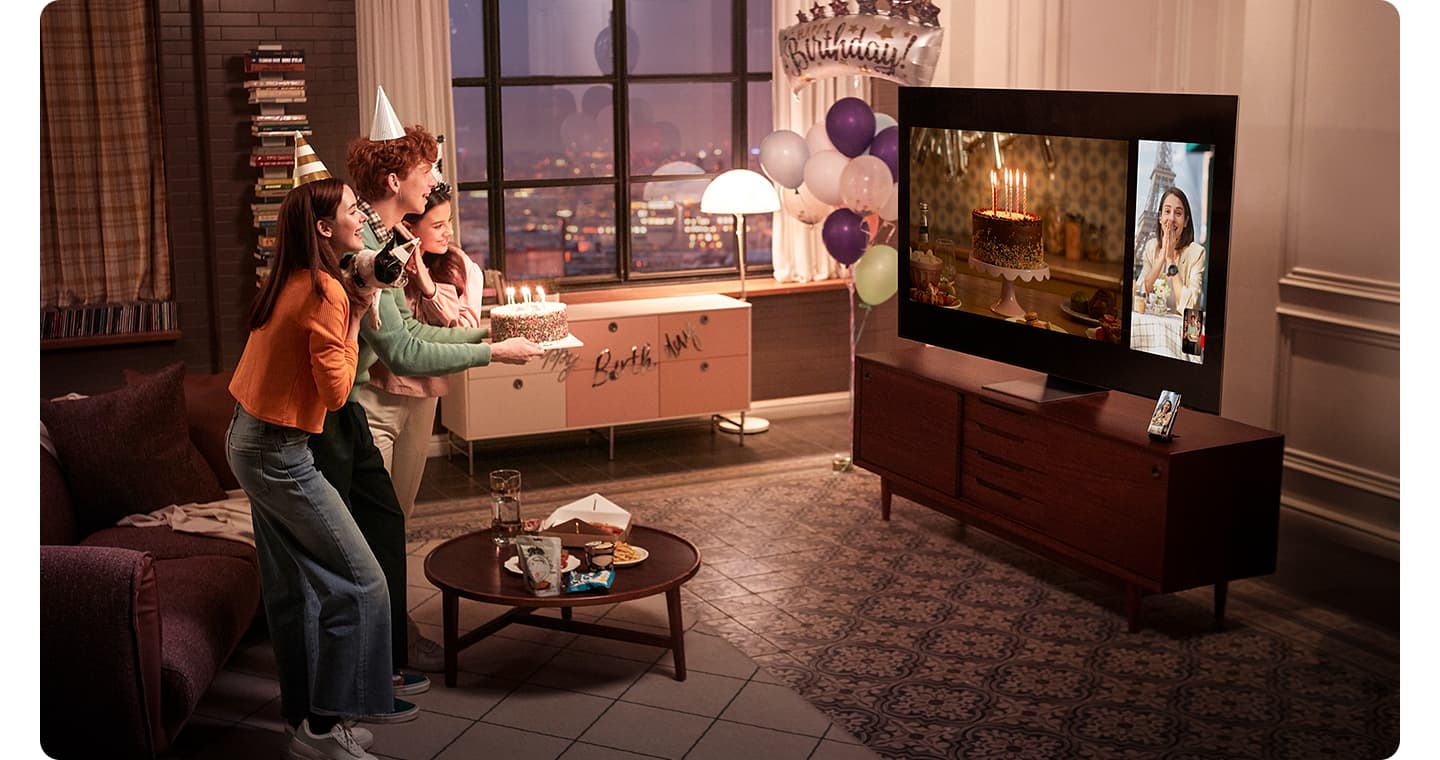
А если к телевизору Samsung подключена совместимая веб-камера, то с помощью приложения Google Duo можно осуществлять видеозвонки прямо с телевизора. Приложение на телевизоре синхронизирует все контакты, так что осуществить вызов можно будет с помощью пары щелчков пультом ДУ. Если же камеры нет, это не беда. Функция Tap View позволит отобразить текущий звонок на ТВ при помощи простого прикосновения телефона к задней панели телевизора. При этом благодаря функции Multi View звонок можно вывести в одну часть экрана, а на другой продолжить просмотр ТВ-шоу.
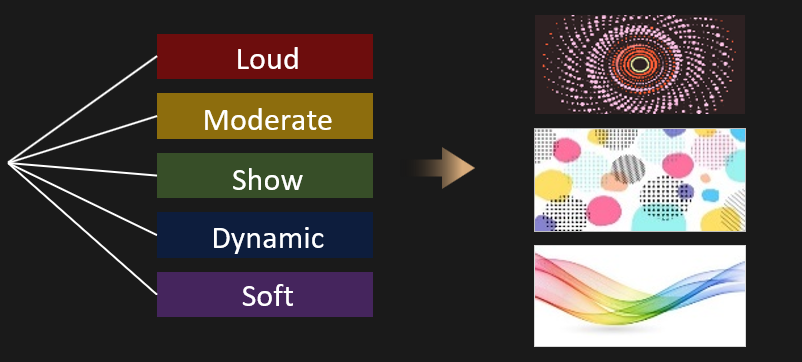
Для работы функции Tap View достаточно запустить приложение SmartThings на смартфоне и включить данный режим. После этого телевизор можно использовать, например, для прослушивания музыки. Функция Music Wall пригодится, чтобы устроить дома танцевальную вечеринку. В этом режиме телевизор визуализирует музыкальное сопровождение на экране в такт музыки, создавая яркую и динамичную картину. Телевизор анализирует и классифицирует музыку по её ритму, подбирая соответствующий видеоряд и спецэффекты, отражая атмосферу музыкальной композиции и передавая её настроение.
При помощи функции Tap View на экран телевизора можно вывести и фотографии со смартфона. Делается это прямо из приложения «Галерея»: нужно просто выбрать фотографии, которые хочется показать на экране, нажать «Поделиться» и далее «Просмотр изображений на телевизоре». При этом умный телевизор Samsung автоматически настроит макеты и подгонит их под формат фотографий. Также можно выбрать один из пятнадцати фильтров, применяя тот или иной эффект к отображаемым на экране фотографиям.
How To Do Multiview On Samsung Tv?
Multiview on Samsung TV is a great feature that allows you to watch multiple shows at the same time. To use this feature, you need to set up the TV and your computer. Once you have done that, you can start watching your favorite show by pressing the “multiview” button on your Samsung TV.
The next step is to find a screen where you want to view the second screen. Once you’ve found a screen that’s the correct size, you can tap it to view the second screen. Then, select the app on the device to view. Using the multiview feature on your Samsung TV, you’ll be able to watch two different screens at once. To do this, you can also use the Airplay button on your mobile device.
Once you’ve tapped the screen of your phone, open the SmartThings application. Once the SmartThings app is open, tap the menu icon on the TV. You can also choose to mirror the contents of your smart phone using a mirroring application. You can also access this feature from your Samsung TV by using the SmartThings app. The SmartThings app is compatible with the Samsung TV and is a useful tool for multitasking.
How Do You Split Screen on Samsung Smart TV?#
You can use the Multiview function on your Samsung Smart TV to split the screen into two or more parts. This feature lets you watch two video sources on one screen, allowing you to multitask with ease. You can also use the Split Screen feature to video chat with others. To set up Split Screen on your Samsung TV, follow these steps. Once you have set up the connection, you will see that the split screen feature is ready for use.
How Do You Split Screen on Samsung Smart TV?How Do I Split My TV Screen?How Do You Use Multi Window on Samsung?Does My Samsung Smart TV Have PIP?How Can I Watch Multiple Channels at Once?How Do I Turn Off Multiview on Samsung?
On the source menu, find the Multi-View option. Then, select the source that you want to split into two tabs. On the split screen, the first content will be shown on one side, and the second will be on the other. Once you’ve selected the content on one side, go to the menu and select the other one. After that, the screen will be split into two sections. You can switch between the two screens at any time by selecting the appropriate option.
How Do I Split My TV Screen?#
If you have a Samsung television, then you may be wondering how to split the screen so that you can watch different content simultaneously. In this article, we will go over how to do this on your Samsung TV. Before you begin, make sure that your TV is properly connected to your phone. Once you have this connected, you should click on the menu icon to select Multi View. Next, select the source of content. If you are using an external device, you will have to select it in the Connection Guide menu. Once you’ve done that, you can move the content from the first source to the second source and back.
To switch from one source to another, simply press the Home button on your Samsung TV. Then, navigate to the settings menu and select Multiview. You should see a screen divided into two. If you want to view content on two screens, you can also select the Picture in Picture mode. If you don’t want to use Multiview, you can also switch back to using two screens. If the first screen is smaller than the second, you can select a smaller screen and make it the main one.
How Do You Use Multi Window on Samsung?#
The Multi Window option on your Samsung TV lets you view several applications simultaneously on one screen. You can toggle between the open applications without having to close them. When you are done using the Multi Window, you can switch back to normal screen mode by pressing the Home key or the X icon in the multi window icon. Alternatively, you can close the Multi Window when you’re not using it. You can use this feature to watch several apps at the same time, or just to enjoy the same content in different screens.
To use multi window on Samsung TV, first select the Multi-Window option. Once the Multi-Window option is selected, you can adjust the size of the window or keep the split-screen view. You can also use the Picture in Picture position to place the smaller screen on top of the main screen. Then, select the appropriate settings on your TV. After you’ve done that, you can enjoy your dual screens.
Does My Samsung Smart TV Have PIP?#
How do I enable the PIP feature on my Samsung Smart TV? First, open the TV’s menu. On the menu, look for the PIP button. Press this button to open the picture menu. There, you will see a list of options. You can then choose an option and press the PIP button to start the process of switching sources. To enable PIP, you must log in to your Samsung account.
If you are a video streaming fan, you’ve probably noticed that Samsung smart televisions have this feature. Most televisions, personal computers, mobile devices, and even video streaming channels offer picture-in-picture capabilities. Samsung Smart TVs have built-in turners that allow you to view two sources at the same time. When you flip back and forth between these two sources, the picture-in-picture feature will automatically switch between the two and allow you to enjoy both images simultaneously.
In addition to using the PIP feature with external devices, a Samsung smart TV can also have this feature. You can use it to switch between sources, view the GPS, or view the main picture. PIP is an optional feature, so if you aren’t sure whether your TV has this feature, be sure to disable the other features before trying it. Make sure you follow the manufacturer’s instructions, as they vary by model.
How Can I Watch Multiple Channels at Once?#
If you’re wondering how to watch multiple channels on your Samsung TV, you’re not alone. The new device is an amazing entertainment device packed with movies, TV shows, and Live TV channels. However, sometimes you want to watch your local channels on your Samsung TV. Thankfully, this is a relatively simple process that can be completed in a matter of minutes. Listed below are some helpful tips to get you started.
First, connect a second TV to your Samsung TV. It should support multiple devices via HDMI. Make sure to connect the other devices with the HDMI cable to your TV. You may need to switch to the other screen if the first doesn’t work. In the same way, make sure your TV is powered up and connected to the internet. Then, go to Settings and select Dual Window. In the Dual Window menu, click the switch next to the TV and select the desired output. Once the device has entered the Dual Window mode, it will display a list of recently-used applications on the second screen.
You can also mirror the screen of your phone to your Samsung TV. In this way, you can watch multiple shows at once, depending on which one you’re watching. Simply choose the one you want and hit “mirror.” Then, use your phone to stream the content onto your television. Once it’s set up, you’ll be able to watch multiple channels at once on your Samsung TV.
How Do I Turn Off Multiview on Samsung?#
If you are using a Samsung TV, you will need to know how to turn off Multiview so you can watch only the videos on the main screen. The feature lets you send videos from your mobile device to your television, where they are played at the same time. You can split the screen into two windows to show two video signals, and there are fourteen different ways to position each window. To turn off Multiview on a Samsung TV, you must first open the Source Menu and find the Auto-run Multi View Mirroring/Casting menu.
If you want to watch two video streams on one screen, you can use the multiview feature. The Multiview feature allows you to view two screens at once. You can connect a compatible mobile device or PC, and then use Tap view to mirror your screen to the other. In addition, you can also use the picture-in-picture function to place the smaller screen on the main screen. This feature is very useful for multitasking, as it allows you to watch two different streams at the same time.
What Is Samsung TV Multiview?


When you buy through our links, we may earn an affiliate commission.
Smartphones make communication and daily tasks easier making them an essential part of our daily lives, and we often find ourselves paying attention to them even when watching TV. Samsung smart TVs have a Multiview feature that allows you to watch multiple contents on your TV screen to solve this problem.
Samsung multi-view is a feature that allows you to view multiple things that are broadcasting simultaneously. You can split the TV screen and watch content from different sources, including Blu-ray, TV tuner, app, smartphone, game console and live streaming.
The Multiview feature is useful when watching several events or mirroring your phone to avoid distractions. If you want to enjoy the most out of your Samsung smart TV, read on to find out how to set up Multiview and mirror your phone using tap.
How Do I Set up Multiview on My Samsung TV?
You can easily set up and start using the Multiview feature on your Samsung smart TV. Simply follow the following steps:
- Select the Home button on your TV remote and press the Multiview button. Alternatively, you can press the Multiview button on the remote.
- Choose the Source of the content. If choosing an external device, go to the Source Menu, scroll to Connection Guide, and select the device.
- When the split-screen appears, one screen will stream the chosen content, and you need to set up the second screen.
- Select the second Source to set up the second screen on the Menu.
You can adjust the size of the windows on your TV to suit your preference or keep a split-screen view to keep them equal. The Picture in Picture (PIP) position allows you to place the smaller screen on the top or bottom right or left corners of the main screen.
If you would like to learn more about Samsung, take a look at this article.
How Do I Choose the Sound Output on Multiview Samsung TV?
You can choose whether the TV audio is from the main screen or the smaller screen. If you have connected an external device to your TV, the audio will switch from the TV’s speakers to the device’s speaker when you change the output.
In addition, you can use Bluetooth to pair devices and help you listen to audio from various screens. You can do so in the following steps:
- Ensure your Bluetooth device is ready to pair
- While your Multiview screen is running, press the Multiview button on the remote
- Select Settings on the Menu
- Select the Bluetooth option from the list
- Finish pairing your device
On the other hand, you can choose the sound distribution option to hear the audio from both screens simultaneously. Simply select the screen button when the multi-link is running and choose the speaker settings to choose the output for each screen. If you choose this option, both the TV and external device speakers will give audio output simultaneously.
How to Mirror Your Phone on Samsung Multiview TV
Your Samsung smart TV enables you to use Tap View to transfer your photos, videos or stream videos on the larger screen. In addition, you can use the volume keys on your phone to control your TV’s volume.
To set up Tap View, you need SmartThings app version 1.7.45 or higher. Follow the following steps to set up Tap View on your phone and TV:
- Open the SmartThings app on your phone and select Menu
- Select Settings
- Select Tap View
- Click the switch to turn on Tap view
Once you have switched on Tap View, gently tap the back of your phone against your TV to start mirroring. To get the best results, ensure to tap on the top or side of the screen. In addition, avoid tapping your phone at the bottom of the TV or directly on the screen to avoid damaging it.
You will receive a message on your phone to confirm if you want to share the screen after a successful connection. If you have used Tap View before on your 2021 Samsung Tv, you can use it to wake up your TV if it is on. You can stop mirroring by simply selecting disconnect on your phone screen.
Which Devices Are Compatible with Samsung Multiview TV?
Most Samsung 2020 and 2021 smart TVs have the Multiview feature. However, the screen combination and Multiview version vary depending on the TV model. You can mirror all Android smartphones that support screen mirroring and airplay 2 compatible devices such as iPad, iPhone and MacBook.
Additionally, you can also mirror a connected webcam or SmartThings camera. Supported cameras include:
- Logitech HD Pro Webcam C920 and C920S
- Logitech C922 PRO and C922X Pro Stream Webcam
- Logitech C925E
- Logitech C930 E
You can also play content from other devices such as USB devices, TV apps, devices connected using HDMI cables, cable and antenna.
Conclusion
Your Samsung Smart Tv allows you to watch two broadcasts simultaneously through the Multiview feature. You can easily mirror your phone using Tap view and use your phone while enjoying your favourite sports or TV show.
In addition, connecting a Bluetooth device or selecting sound distribution allows you to enjoy audio from both screens. To enjoy Samsung Multiview, ensure that your devices are compatible and support screen mirroring.
Как использовать функцию Multi View на телевизоре Samsung Smart TV
Сегодня смартфон стал неотъемлемой частью нашей жизни. Более половины дня мы проводим со смартфоном в руках. Во время просмотра телевизора мы иногда смотрим на телефон или даже приостанавливаем воспроизведение, чтобы ответить другу.
Компания Samsung попыталась решить эту проблему и внедрила в свои новые телевизоры Smart TV несколько функций, расширяющих функциональность устройств. Большим шагом стала функция Multi-View, которая позволяет одновременно использовать мобильное устройство и телевизор на одном экране.
Что такое Multi View и как он работает
Multi View — это функция, позволяющая одновременно транслировать два видеоконтента на разделенном экране. На разделенном экране можно смотреть любимый контент из нескольких источников, включая ТВ-тюнер, приставку, потоковое вещание или Blue-ray.
Телевизор будет воспроизводить оба видео одновременно, и вы можете, например, разместить мобильное изображение на одной стороне, наложить его в режиме «картинка в картинке» или напрямую разделить экран, чтобы обеспечить одинаковое пространство для обоих источников изображения.
В зависимости от модели экран телевизора может быть разделен на две или четыре части. В каждой области может отображаться свой контент: ТВ-трансляции, контент из приложения или просто картинку со смартфона.
Эта функция может быть очень полезна, если вы хотите одновременно смотреть несколько спортивных событий или если вам позвонил друг и вы не хотите отвлекаться от просмотра. Существует множество ситуаций, когда вы можете использовать эту функцию, но не все знают, как ее активировать.
Настройки звука в функции Multi View на телевизорах Samsung
Если с двойным изображением на телевизоре проблем нет, так как существует множество возможностей для размещения картинки, то со звуком все немного сложнее. Если вы просто пользуетесь Facebook или читаете новости во время просмотра телевизора, то проблем со звуком не будет, потому что источник звука будет только один — ваш телевизор.
Однако в случае, если оба видеосигнала содержат звук для воспроизведения, просмотр такого контента будет для вас некомфортным. Поэтому Multi View предлагает вам несколько вариантов воспроизведения звука:
- Вы можете воспроизводить звук с двух устройств одновременно и управлять громкостью каждого устройства отдельно, например, чтобы сделать тише то, что для вас менее важно (это то же самое, что управлять звуком на Mac или PC).
- Или вы можете полностью отключить один ресурс
Поэтому вы можете сами решить, какой вариант звучания подходит вам больше всего.
Какие существуют способы подключения телефона или планшета к телевизору
Чтобы использовать функцию Multi View через телефон или планшет, необходимо подключить их к телевизору. Вы можете использовать различные подключения, как кабельные, так и беспроводные. Для проводного подключения можно использовать соединения HDMI/USB-C, а для беспроводного — Wi-Fi или AirPlay (если вы используете устройство iOS).
Для максимально быстрого подключения в новых телевизорах Samsung добавлена функция Tap View, которая позволяет подключить устройство, просто прикоснувшись им к телевизору.
Как включить функцию Multi View на телевизоре Samsung
В телевизорах Samsung включить функцию Multi View очень просто, для этого необходимо:
- Нажмите кнопку на пульте ДУ, а затем выберите «Multi View» (выглядит как три прямоугольника с символом плюса посередине) или вы также можете использовать кнопку одним касанием прямо на пульте ДУ
- В меню необходимо выбрать первый источник (телевизор или телефон)
- Затем появится разделенный экран, на одном экране будет транслироваться выбранный ранее контент, а второй экран вы настроите следующим образом.
- Появится меню для выбора следующего источника; это может быть потоковое вещание, игровая консоль, телефон — все, что можно подключить к телевизору.
- Если один из ваших источников уже подключен к телевизору, вы можете получить к нему доступ, выбрав опцию «выбрать приложение/источник». Если это, например, YouTube, вы можете зайти и выбрать конкретное видео.
- Если вы хотите транслировать контент с телефона, вам необходимо включить функцию «Зеркалирование экрана» на вашем устройстве
- После подключения экран телефона автоматически появится на одном из свободных экранов телевизора.
- После выбора источников вы можете регулировать размер окон и перемещать их. Сделать одно больше или меньше
Таким образом, вы можете легко подключить к телевизору практически любое устройство и транслировать контент сразу с двух устройств на большой экран.