Беспроводная стереофоническая гарнитура WF-C500
Операция по регистрации устройства, которое вы хотите подключить, называется “согласованием”. Перед тем как использовать какое-либо устройство с гарнитурой впервые, выполните согласование.
Перед выполнением этого действия проверьте следующее:
- Устройство Bluetooth располагается в пределах 1 м от гарнитуры.
- Батарея гарнитуры имеет достаточный заряд.
- Инструкция по эксплуатации устройства Bluetooth находится под рукой.
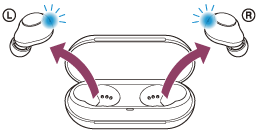
Гарнитура включится автоматически. Убедитесь, что индикаторы (синие) мигают.
При выполнении согласования гарнитуры с устройством в первый раз после покупки или инициализации гарнитуры (если гарнитура не содержит информации о согласовании), гарнитура переходит в режим согласования автоматически при извлечении гарнитуры из зарядного чехла. В этом случае перейдите к шагу  .
.
При согласовании второго и последующих устройств (гарнитура содержит информацию согласования с другими устройствами) нажмите и удерживайте кнопки на левом и правом наушниках приблизительно в течение 5 секунд.
Убедитесь, что индикатор (синий) на обоих наушниках гарнитуры непрерывно мигает по два раза.
Вы услышите голосовое уведомление “Bluetooth pairing” (согласование Bluetooth) из обоих наушников гарнитуры одновременно.
[ WF-C500 ] будет отображаться в списке обнаруженных устройств на экране устройства Bluetooth .
Если эта индикация не отображается, повторите действия, начиная с шага  .
.
Если требуется введение кода доступа (*), введите “0000”.
* Код связи может называться “Код доступа”, “PIN-код”, “PIN-номер” или “Пароль”.
Некоторые устройства подключают гарнитуру по завершении согласования.
Индикатор (синий) на обоих наушниках гарнитуры будет быстро мигать примерно 5 секунд.
Вы услышите голосовое уведомление “Bluetooth connected” (Bluetooth подключено) из наушника гарнитуры, который был вынут из зарядного чехла первым.
Совет
- Указанная выше процедура приводится в качестве примера. Дополнительные сведения см. в инструкции по эксплуатации, прилагаемой к устройству Bluetooth .
- Для удаления всей информации о согласовании Bluetooth см. раздел “Инициализация гарнитуры для восстановления заводских настроек”.
Примечание
- Если согласование не было установлено в течение 5 минут, режим согласования отменяется. В этом случае поместите гарнитуру в зарядный чехол и выполните операцию снова с шага
 .
. - Если устройства Bluetooth согласованы, выполнять согласование повторно не требуется, кроме следующих случаев.
- Информация о согласовании была удалена после ремонта и т. д.
- Если согласуется 9-е устройство.
Согласование гарнитуры можно выполнить максимум с 8 устройствами. Если новое устройство согласуется после выполнения согласования с 8 устройствами, информация о регистрации устройства, которое согласовывалось давнее всего, будет заменена информацией нового устройства. - Если информация о согласовании гарнитуры удалена с устройства Bluetooth .
- Если гарнитура инициализирована.
Вся информация о согласовании будет удалена. В этом случае удалите информацию о согласовании с гарнитурой с подключенного устройства и выполните согласование снова.
How To Pair Sony WF-C500 (Laptop, iPhone & iPad)
Sony has been evolving its earbud shape and fit for decades. The Sony WF-C500 is a true reflection of all the hard work the company has achieved so far. They have a rounded ergonomic design to fit any ear shape. They also have easy-to-use buttons that allow you to skip, play, and stop tracks or adjust the volume.
The earbuds deliver uncompromising sound with their 360-degree reality audio feature and offer up to 20 hours of battery life between charges, for an extended listening experience.
The best part is that they are compatible with most devices, including iOS, Android, PC & Mac . But before you can connect them to your Bluetooth device, you must pair them.
Here’s how to pair the Sony WF-C500 with your laptop, iPhone, or iPad .
Key Takeaways
- Your Sony WF-C500 earbuds mustenter pairing modebefore you can pair them with your devices . If new, the earbuds will automatically enter pairing mode.
- When pairing your earbuds with a second device, you must manually put them in pairing mode. Press the touch buttons on both units for 5 seconds to enter pairing mode .
- Bluetooth limitations can cause pairing issues in your Sony WF-C500. Ensure the earbuds are within 10 meters from the device you want to pair with .
- Bluetooth connections require a sufficient charge to complete the pairing process. Ensure your headset and Bluetooth devices arechargedto preventpairing issues .
- Initializing or resetting your Sony WF-C500 can help correct minor glitches, including pairing issues . Reset the earbuds if you experience pairing problems.
Introducing SONY WF-C500
How to Put Sony WF-C500 in Pairing Mode (Device Registration)
Bluetooth devices must exchange registration between themselves to connect and communicate. This process is called pairing .
Your Sony WF-C500 earbuds must enter pairing mode before you can pair them with your smartphone or laptop . Pairing mode makes them discoverable so that your devices can find them.
If the earbuds are new, they will automatically enter pairing mode when using them for the first time. If pairing with a second or third device, the earbuds can only enter pairing mode with your intervention .
Follow these steps to put Sony WF-C500 in pairing mode:
- Remove the earbuds from the charging case and fit them in your ears.
- Press the touch sensor button on both earbuds for about 5 seconds .
Press touch sensors on both buds for 5 seconds to enable pairing mode
- Release the buttons when you hear “ Bluetooth Pairing ” or the indicator flashes blue twice.
- Your Sony WF-C500 is now in pairing mode.
- Jump to the next section to pair your earbuds with your laptop, iPhone, or iPad.
Enabling Pairing Mode on WF-C500 Earbuds
Pairing Sony WF-C500 with Windows PC
Follow these steps to pair Sony WF-C500 with a Windows laptop:
- Right-click the Start button on your laptop.
- Select Settings .
- Click Bluetooth & other devices .
- Turn Bluetooth on .
- Click Add Bluetooth or other device .
- Click Bluetooth .
- Select WF-C500 .
Settings > Bluetooth & Devices (Enable Bluetooth) > Add Devices > Add Bluetooth Device > Select WF-C500
- The voice guidance will say, “ Bluetooth Connected .”
Pairing Sony WF-C500 with Mac
Follow these steps to pair your Sony WF-C500 with your Mac:
- Click the Apple icon on the menu bar.
- Go to System Preferences .
- Click Bluetooth .
- Turn on Bluetooth .
- Select WF-C500 from the list of Bluetooth devices.
- Click Connect .
System Preference > Bluetooth (Turn It On) > Select WF-C500 > Click Connect
- The voice guidance will say, “ Bluetooth Connected .”
- Go to Sound settings to set Sony WF-C500 as the audio output.
Pairing Sony WF-C500 with iPhone & iPad
The pairing procedure is the same for iOS devices, including iPhones and iPads
- On your iPhone, tap the gear icon to open the Settings app .
- Tap Bluetooth .
- Tap the slider to Toggle Bluetooth on .
- From the list of Bluetooth devices, tap WF-C500 .
- The voice guidance will say, “ Bluetooth Connected .”
Recommended Reading :
- Pairing Skullcandy Sesh Evo – Quck Pairing Guide
- How To Pair Sony WF-1000XM3? (Laptop, Mac, Android & TV)
- How To Pair Jabra Earbuds – Pairing Guide for Every Model
Troubleshooting Sony WF-C500 Pairing Issues
Sony F-C500 earbuds rarely have pairing issues . However, this does not mean they are exempt from malfunctions. Your earbuds might fail or act up when you want to pair them with your laptop, iPhone, or iPad.
Here are some troubleshooting tips to help you solve Sony WF-C500 pairing issues.
Check Bluetooth Range
Bluetooth limitations can cause pairing issues in your Sony WF-C500 earbuds. A good rule of thumb is to view your Bluetooth connection as an invisible 10-meter cord. Any distance beyond 10 meters can cause noise disturbances and connectivity problems .
The max recommended distance between the earbuds and a Bluetooth source is 10m/33ft
Obstacles between your earbuds and Bluetooth devices can also cause pairing issues. With your earbuds fitted, move closer to your phone or laptop and clear obstructions to ensure you are within range.
Charge Your Earbuds
Your Sony WF-C500 earbuds might develop pairing issues because of low battery power . Bluetooth connections require a sufficient charge to complete the pairing process. Check the battery status of your earbuds. The indicator light on the earbuds will flash orange, meaning the battery charge is low. If the voice guidance feature is on, you’ll hear a prompt telling you the remaining battery charge. Remember to charge your laptop or smartphone before retrying the pairing process.
Check the Number of Paired Devices
Most smartphones can pair with up to 8 devices . Computers can hold more pairing information but might have problems if the devices are too many. Go to your phone’s or laptop’s Bluetooth menu to check the list of paired devices. If the number of paired devices exceeds the specified number, you may experience pairing issues with your Sony WF-C500 earbuds. To solve this problem, unpair your laptop, iPhone or iPad with one device to create space for your earbuds.
Confirm Connected Devices
If you are a tech enthusiast, you likely have other Bluetooth products in your space. You may have paired your Sony WF-C500 earbuds with another device earlier . When you turn your earbuds on, they will automatically connect to the paired device, causing them not to pair with your laptop or smartphone.
The point is that these Bluetooth earphones can only work with one paired device at a time . To solve this issue, turn off all Bluetooth products except your earbuds and laptop or iPad.
Turn Bluetooth Off and On Again
Turning Bluetooth off and then on again is one of the oldest tricks in the book . If you want to pair your Sony WF-C500 earbuds with your laptop or iPhone, and can’t find the earbuds on the Bluetooth device list, try turning Bluetooth off and on again.
Your phone or computer might pick up many surrounding wireless devices that might contaminate your list. Turning Bluetooth off and on refreshes the list, allowing you to find your earbuds and restart the pairing process.
Restart Your Earbuds and Bluetooth Devices
Another quick way to fix pairing issues in your Sony WF-C500 is to restart your earbuds . Place each earbud in the corresponding slot in the charging case and close the lid for a few minutes. Open the charging case and remove the earbuds to turn them on again.
Rebooting your laptop or iOS devices can also help resolve pairing issues. Locate the power button and press it to switch off your Bluetooth device. Wait a few seconds before restarting your computer or smartphone.
Initialize Your Sony WF-C500 Earbuds
Initializing your Sony WF-C500 earbuds resets volume settings and erases all pairing information . It can help resolve Bluetooth connection issues by un-pairing your headset from previously connected devices.
Как выполнить сопряжение беспроводных Bluetooth-наушников с другим устройством
Выполните следующие 2 шага, чтобы выполнить сопряжение с наушниками.
Шаг 1. Переведите наушники в режим сопряжения
- После первого сопряжения наушников с устройством или после инициализации наушники будут автоматически переходить в режим сопряжения, когда вы достанете их из футляра для зарядки. Если вы наденете наушники. Если вы наденете наушники, вы услышите звук уведомления и голосовые подсказки о сопряжении по Bluetooth через оба наушника.
- Чтобы выполнить сопряжение со вторым устройством, удерживайте палец на сенсорных датчиках обоих наушников не менее 5 секунд. Индикатор на футляре для зарядки дважды мигнет синим цветом, и вы услышите звук уведомления и голосовые подсказки о сопряжении по Bluetooth через оба наушника.
Примечание. Если сопряжение не будет установлено в течение 5 минут, режим сопряжения на наушниках будет отключен. Если это произойдет, поместите наушники в футляр для зарядки и повторите процедуру.
Шаг 2. Завершите сопряжение с помощью устройства
Выберите устройство — источник сигнала из списка ниже и подтвердите процедуру сопряжения.
Примечание. Не все телевизоры Sony с Android TV можно использовать совместно с наушниками или динамиками Bluetooth. Узнайте, поддерживает ли ваш телевизор Bluetooth, в статье Можно ли подключить наушники, колонки и саундбары Bluetooth к телевизору с Android TV или Google TV?
Если проблема не устранена
Для просмотра этого видео в Youtube примите все файлы cookie.
Зайдите в настройки файлов cookie ниже и включите сохранение файлов cookie для Youtube в разделе «Функциональные».
How to pair (connect) my Bluetooth wireless headphones with another device
Note: If the pairing is not finished within 5 minutes, the pairing mode on the headphones is canceled. If this happens, place the headphones into the charging case again and start the operation from the beginning.
Step 2. Operate a device and complete the pairing
Select your source device from the following list to confirm the pairing procedure:
Note: Not all Sony Android TVs can be used with Bluetooth headphones or speakers. Verify your TV supports Bluetooth using the article Can I use Bluetooth headphones, speakers, and soundbars with my Android TV or Google TV?
If the issue is not resolved
If the issue is still not resolved, refer to the article Troubleshooting Bluetooth pairing issues.
Please accept Youtube cookies to watch this video
Access your cookie preferences below and make sure to switch on the Youtube cookie under the 'Functional' section.